
Dextera is a custom home screen for Android: one-handed navigation, unified search, pages for apps and more, and deep customization — without getting in your way. It’s on Google Play and updated often with shipping polish.
On Google Play — the core experience is ready for everyday use; we keep shipping polish and new tools like backup.
Feature map
| Area | What it is |
|---|---|
| Home & App List | Clock, weather, apps, letter rail, search bar |
| Contacts | Call or message people from a home page |
| Recents | Apps you used recently |
| Music | Now playing on a dedicated page |
| Notifications | Full notification center on a page |
| Scratch Board | Notes, pins, clipboard, attachments |
| Quick Settings | Fast toggles on a home page |
| Backup | Save, share, and restore a Dextera zip |
| Page overview | Reorder pages, wallpapers, widgets |
| Wallpapers | Catalog, photos, day/night packs, blur/dim, per-page |
| Styles | One-tap looks (wallpaper + theme + fonts + icons) |
| Icon packs & clock | DuoTone, Wireframe, Frosted Glass, and more |
| Settings | Appearance, Home, Gestures, Search, Pages, more |
| Search | Apps, files, calculator, web, OTP chip |
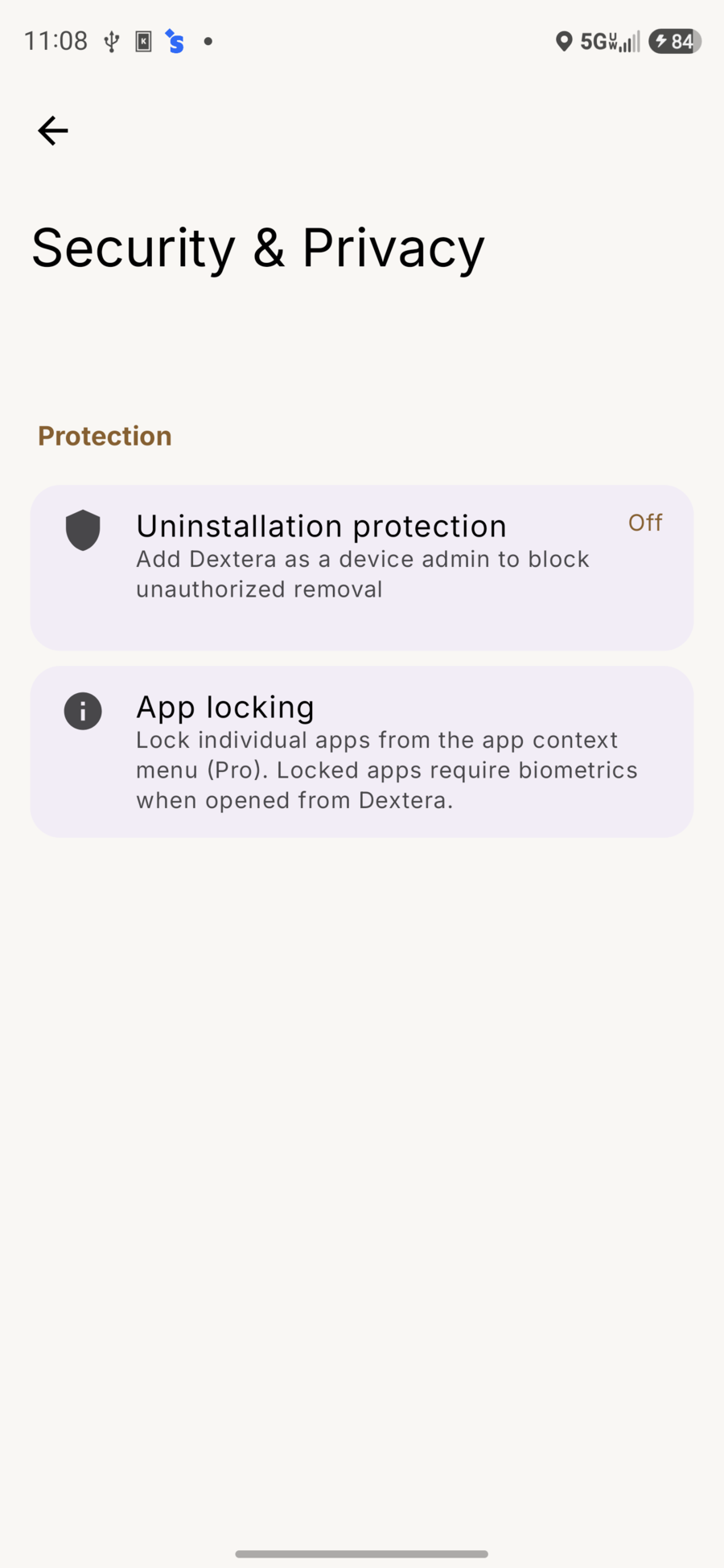
| Security | Uninstall protection, app lock / hide |
| Wellbeing | Zen / declutter, adaptive dimming |
Home & App List
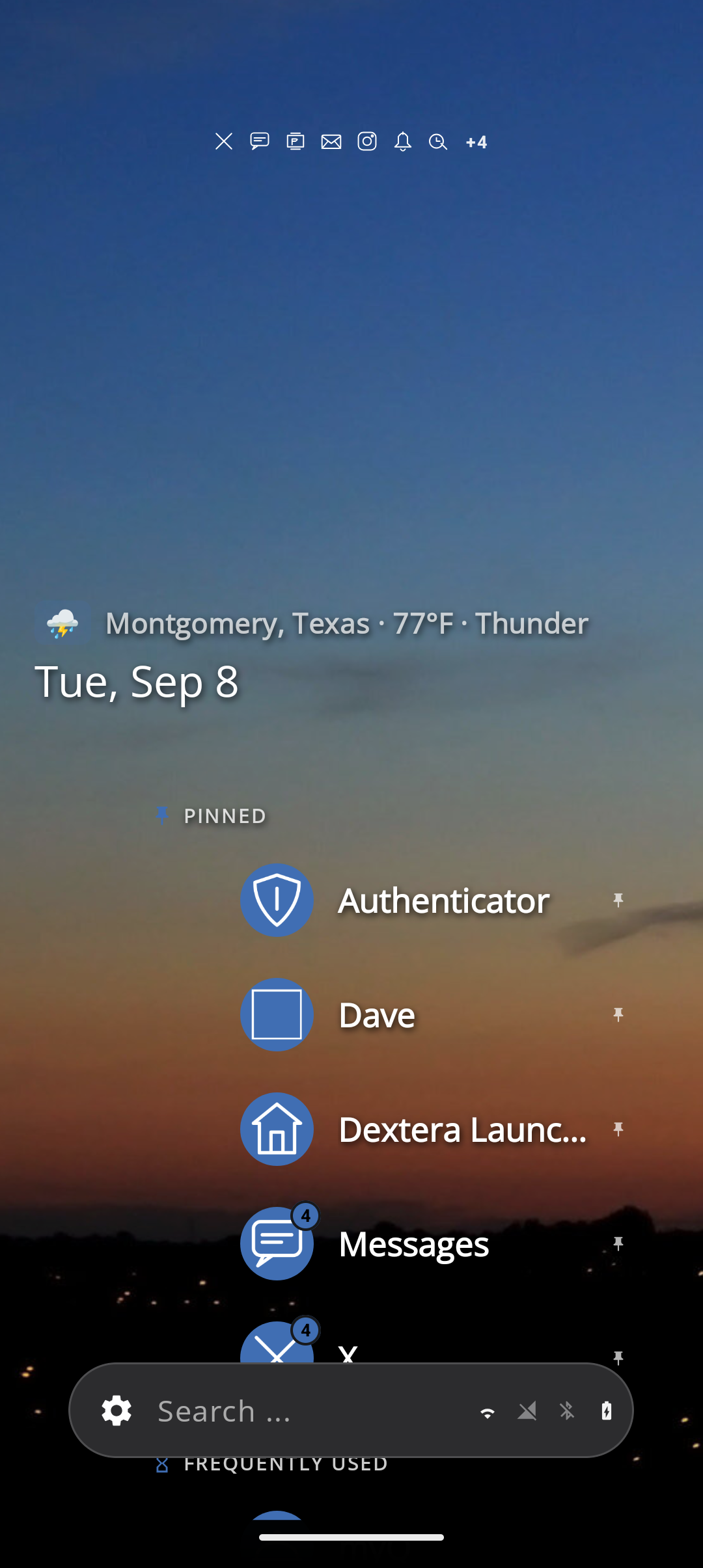
What you see
- Clock, date, weather at the top (tap weather for forecast when set up)
- Optional weather overlay and Pro vignettes for a richer look
- Frequently used apps when usage access is on
- Alphabetical app list with optional letter rail on the side
- Search bar at the bottom (thumb-friendly)
- Gear on the search bar → page overview (not full Settings)
- Optional frosted glass surfaces for cards and panels
How to
- Flick the search bar left/right to change page.
- Hold and drag the search bar to scrub all pages.
- Drag the letter rail to jump the list.
- Long-press an app for pin, hide, folder, lock (Pro), uninstall.
Weather forecast
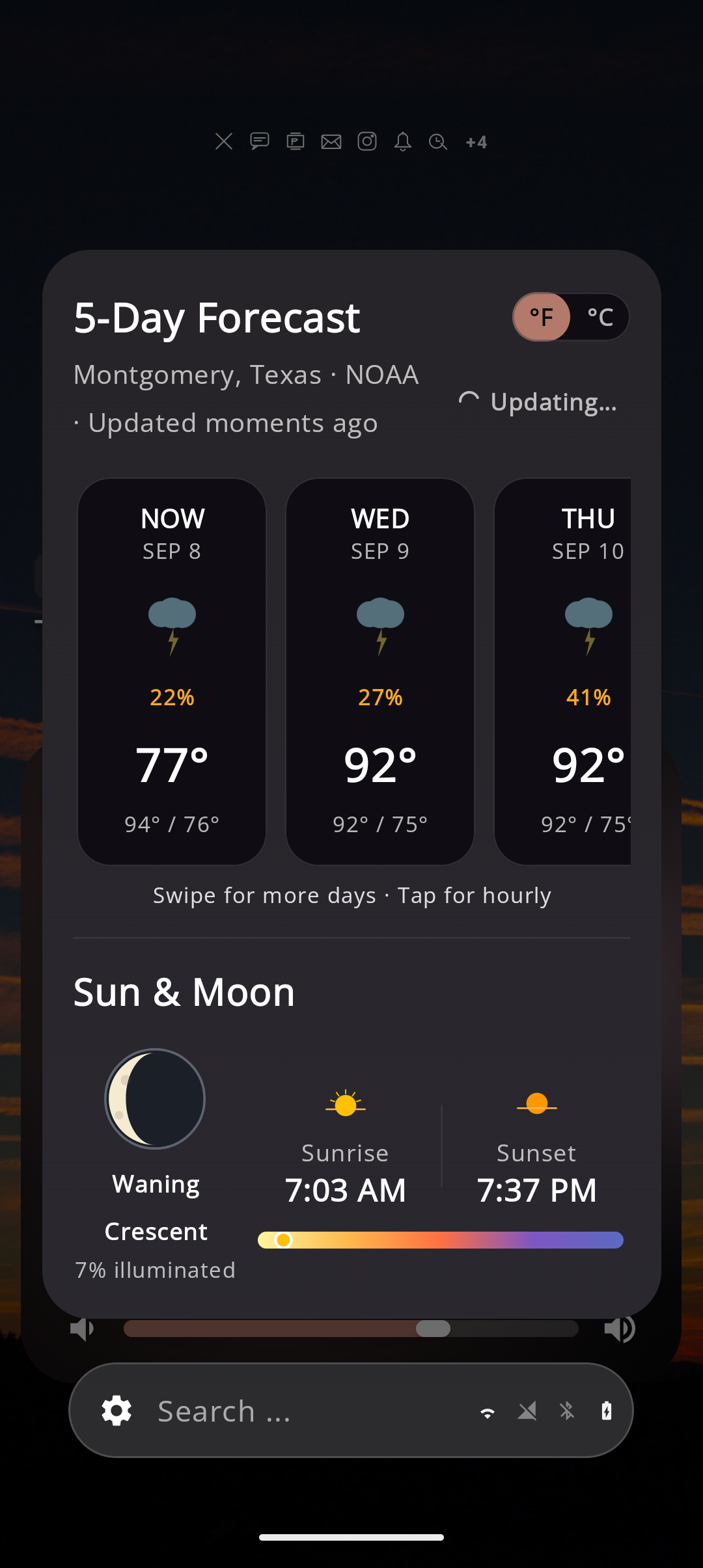
Tap the weather on home for a forecast card (needs location when enabled). Adjust units under Settings → Home.
Contacts
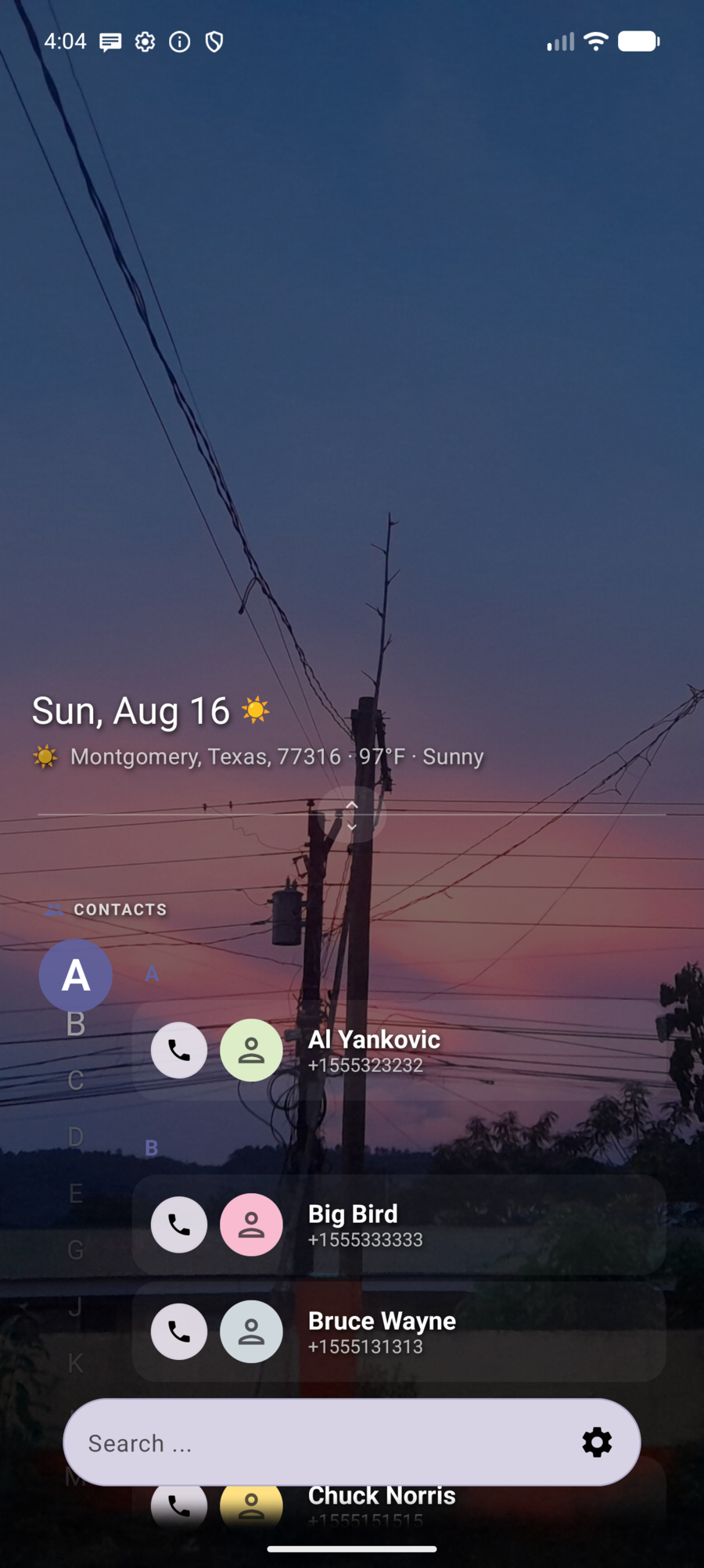
A full Contacts page on home — not only search results.
- Rows with call and message
- Optional letter rail
- Grant Contacts permission once (Quick setup or Settings)
How to
- Enable the Contacts page under Settings → Pages if it is hidden.
- Grant Contacts access when asked.
- Tap the phone or message button, or long-press a row to pin.
Recents
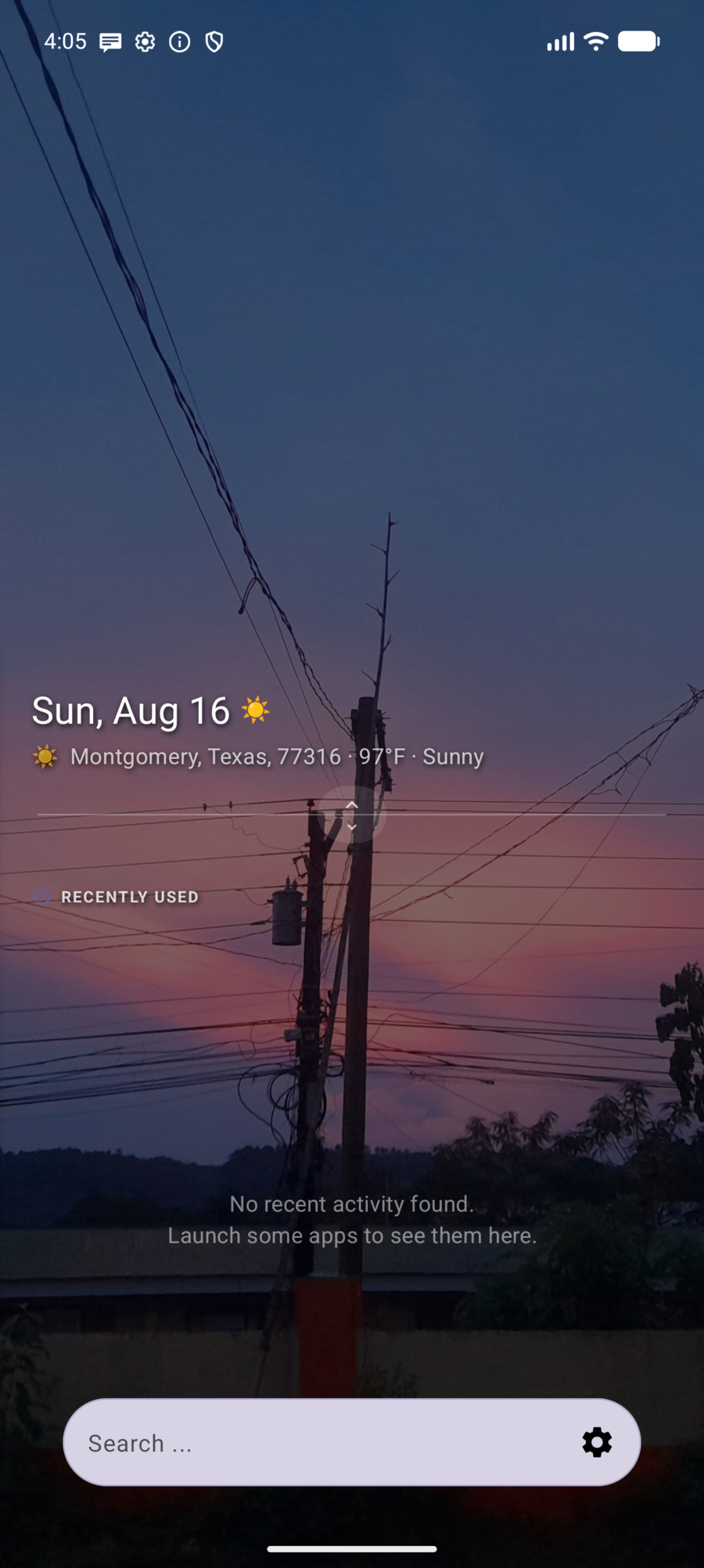
Recently used apps on their own page — quick return without opening the system recents UI.
How to
- Scrub or flick to the Recents page (enable it under Settings → Pages if missing).
- Tap an app to open it.
- Swipe to dismiss; long-press for the app menu.
Music
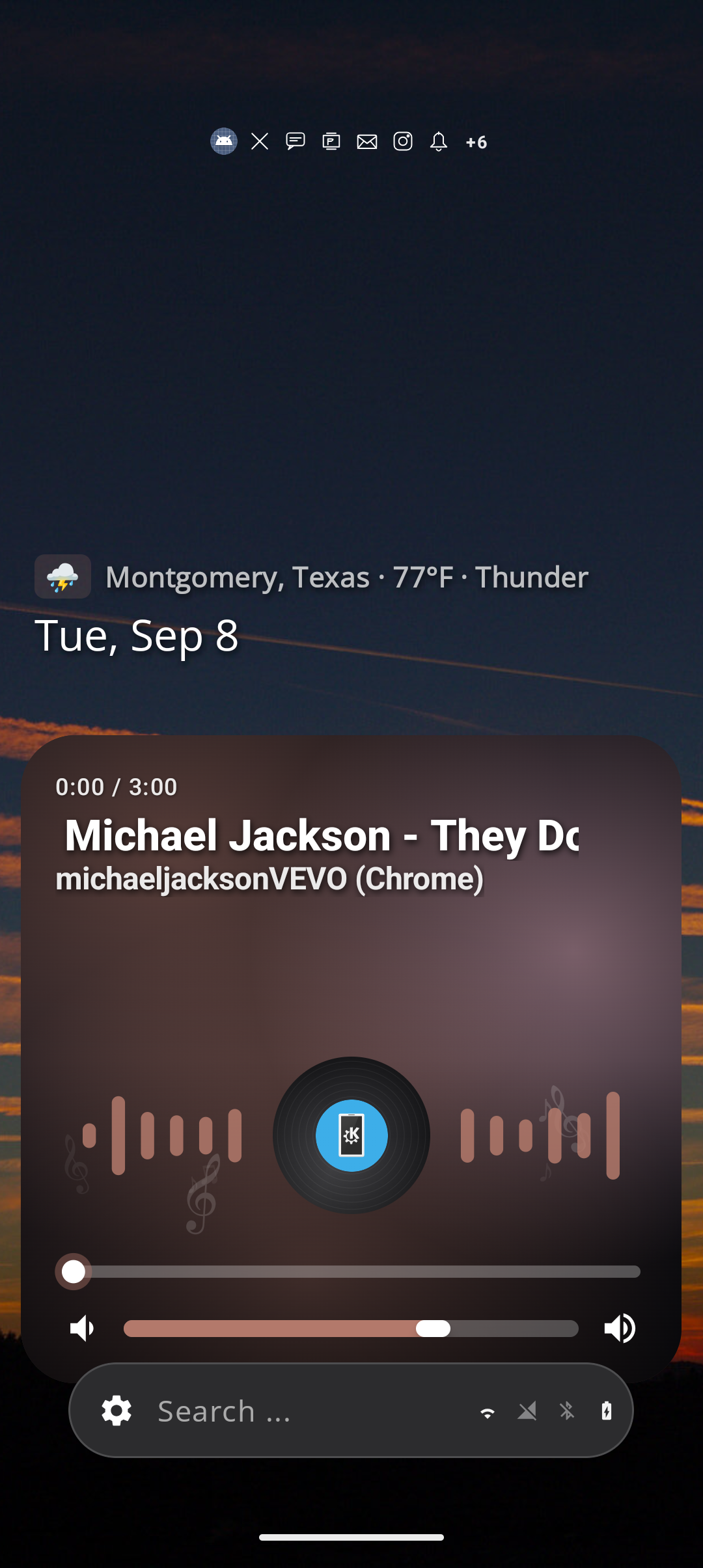
When audio is playing (or a media session is active):
- Large artwork and track title
- Play / pause and seek
- Volume for the active output
- Seek bar styles and button-mode layout in Music page settings
How to
- Start music or a podcast in any app.
- Flick to the Music page (it can hide when nothing is playing).
- Use the card controls; open ⋯ for session options when available.
Notifications
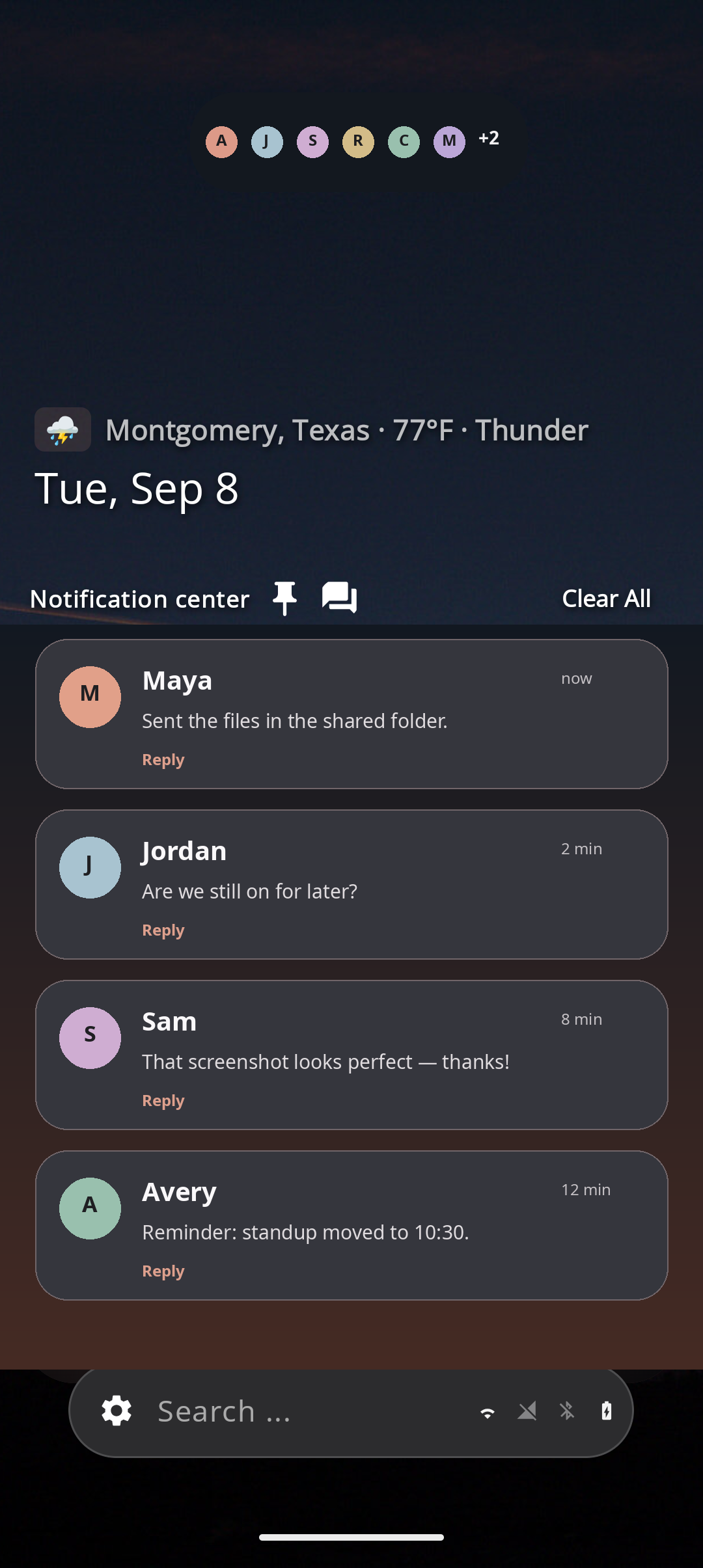
A full Notification Center as a home page (not only the system shade).
- Cards by app; expand, reply, dismiss when the app allows
- Pin apps so they stay high in the list
- Lock pinned (Page settings) so pinned apps can’t be swiped away or cleared with Clear All
- Optional pin toward Scratch Board when that page is available
How to
- Grant notification access for Dextera (prompt or system Settings).
- Open the Notifications page.
- Long-press an app icon on a card (or use the pin control) to pin.
- In overview → Settings on that page → Lock pinned notifications if you want pins locked.
Scratch Board
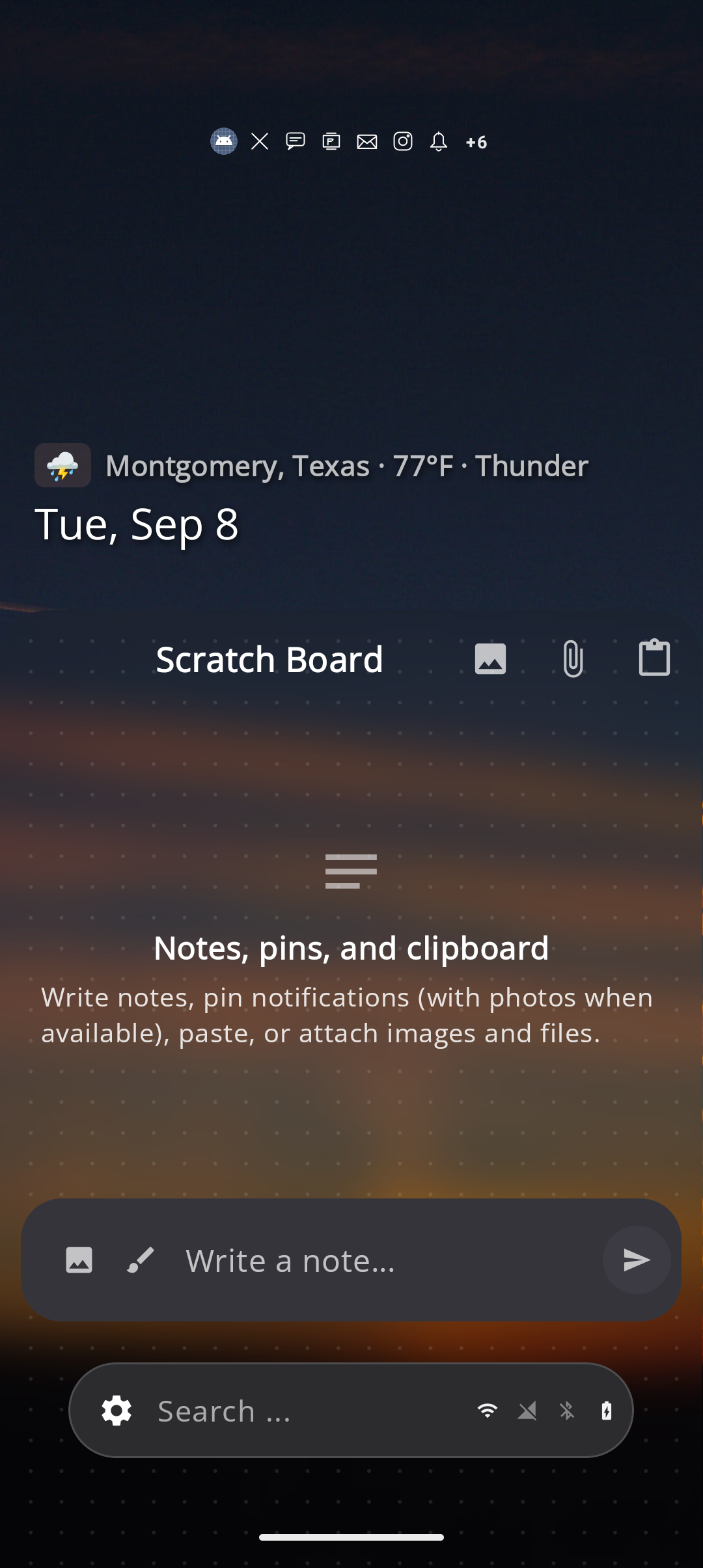
A place for notes, pinned notifications (with photos when available), clipboard, and attachments.
How to
- Open the Scratch Board page (or pin items from notifications).
- Type in Write a note… and send.
- Use the image / attach / clipboard controls on the page.
- Share files into Scratch Board when Android’s share sheet offers Dextera.
Quick Settings
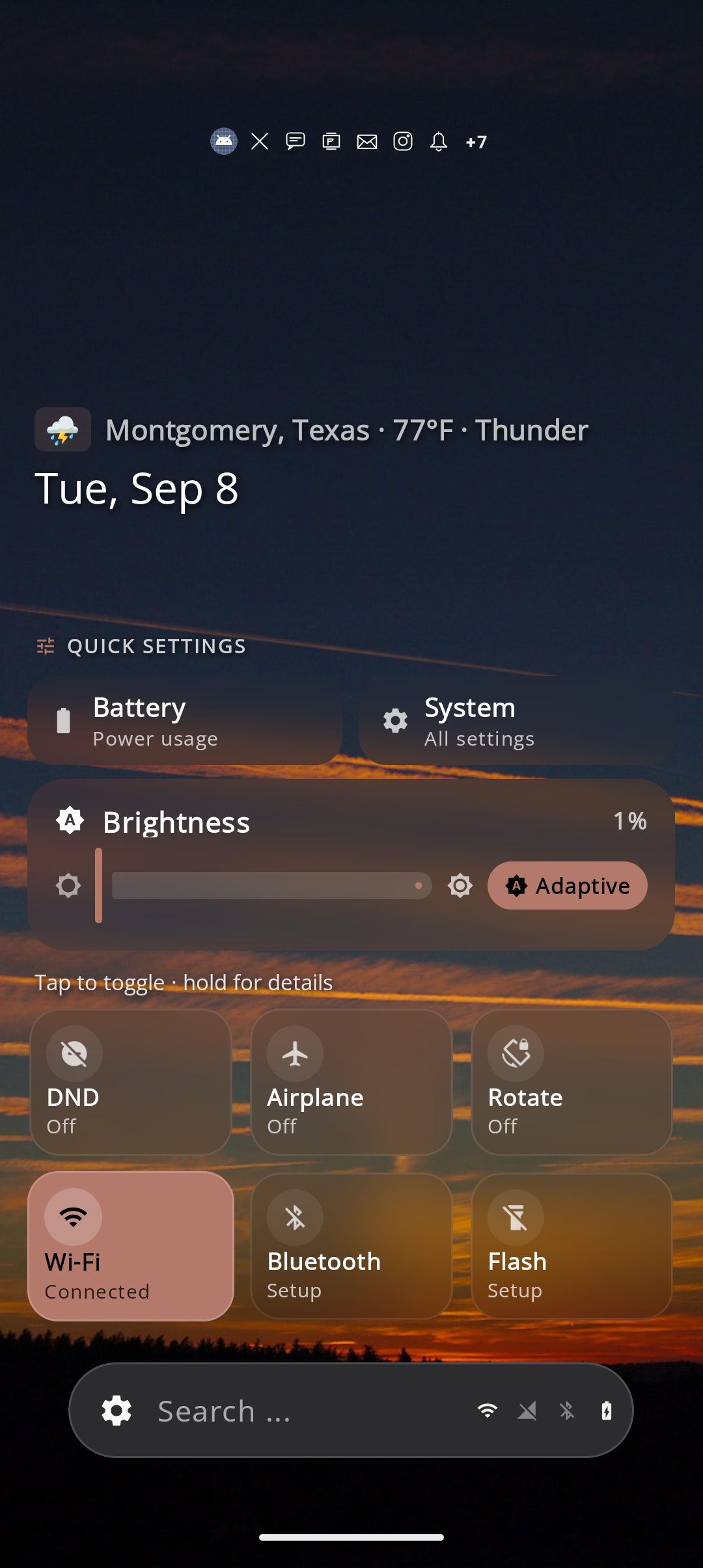
A dedicated Quick Settings page for fast toggles without diving into the system shade: Wi‑Fi, Bluetooth, flashlight, airplane, DND, brightness, and shortcuts into system settings.
How to
- Enable Quick Settings under Settings → Pages (Pro may apply to add).
- Flick or scrub to the page.
- Tap tiles to toggle; hold a tile for the system details screen.
- Brightness needs the Modify system settings grant the first time.
Page overview
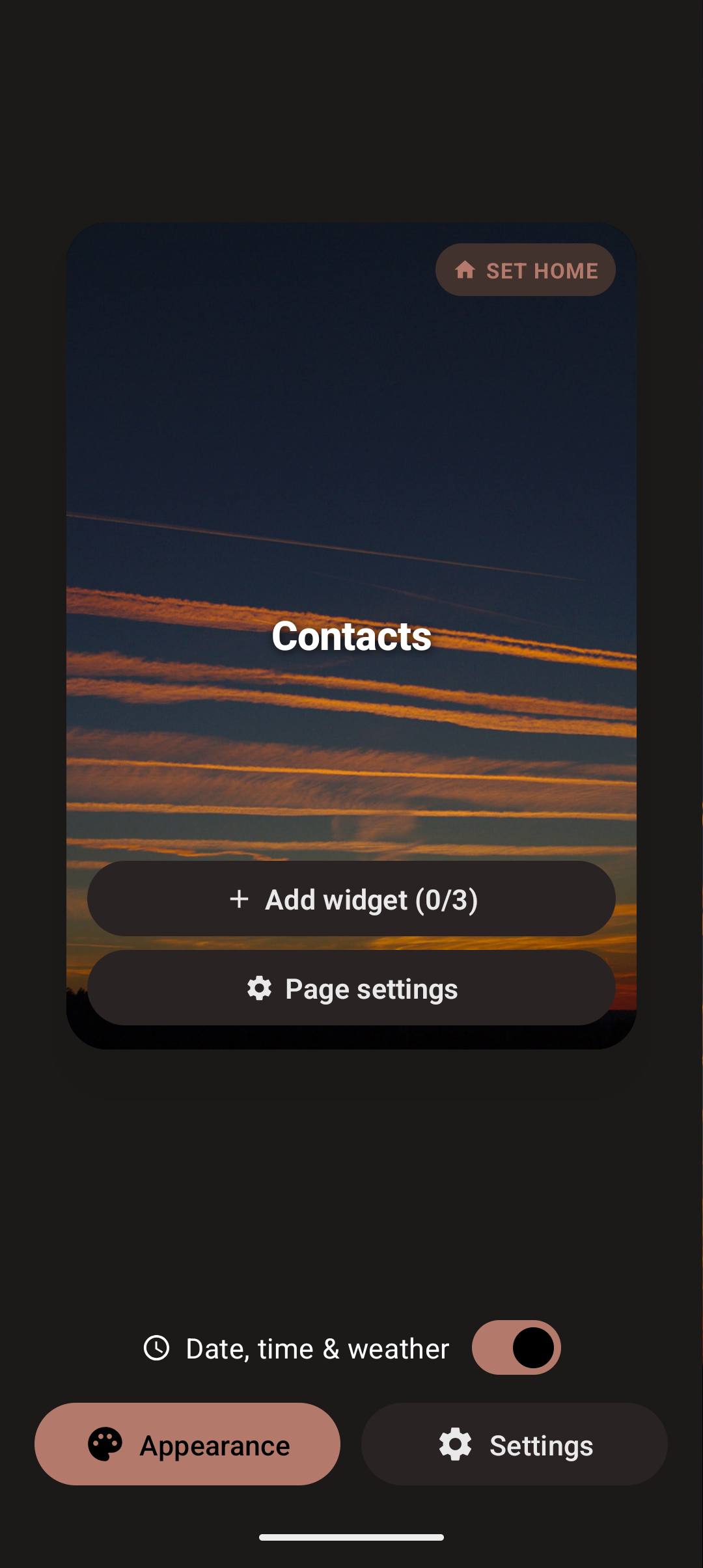
Mission control for your pages — including foldable-friendly spreads when your device supports a wider canvas.
How to open
- Tap the gear on the search bar
- Pinch in on home
- Long-press empty space
What you can do
| Control | Action |
|---|---|
| Long-press drag a card | Reorder pages |
| + Widget (n/3) on built-in pages | Add stacked overlay widgets (up to 3 per page) |
| + Add widgets on custom pages | Free-form widget canvas |
| Settings on a card | That page’s settings (Back returns to overview) |
| Sync wallpaper across pages | One wallpaper everywhere, or per-page wallpapers |
| Wallpaper / Settings at bottom | Appearance or full settings |
Wallpapers
Open from overview → Wallpaper, or Settings → Appearance → Custom.
Effects & icons
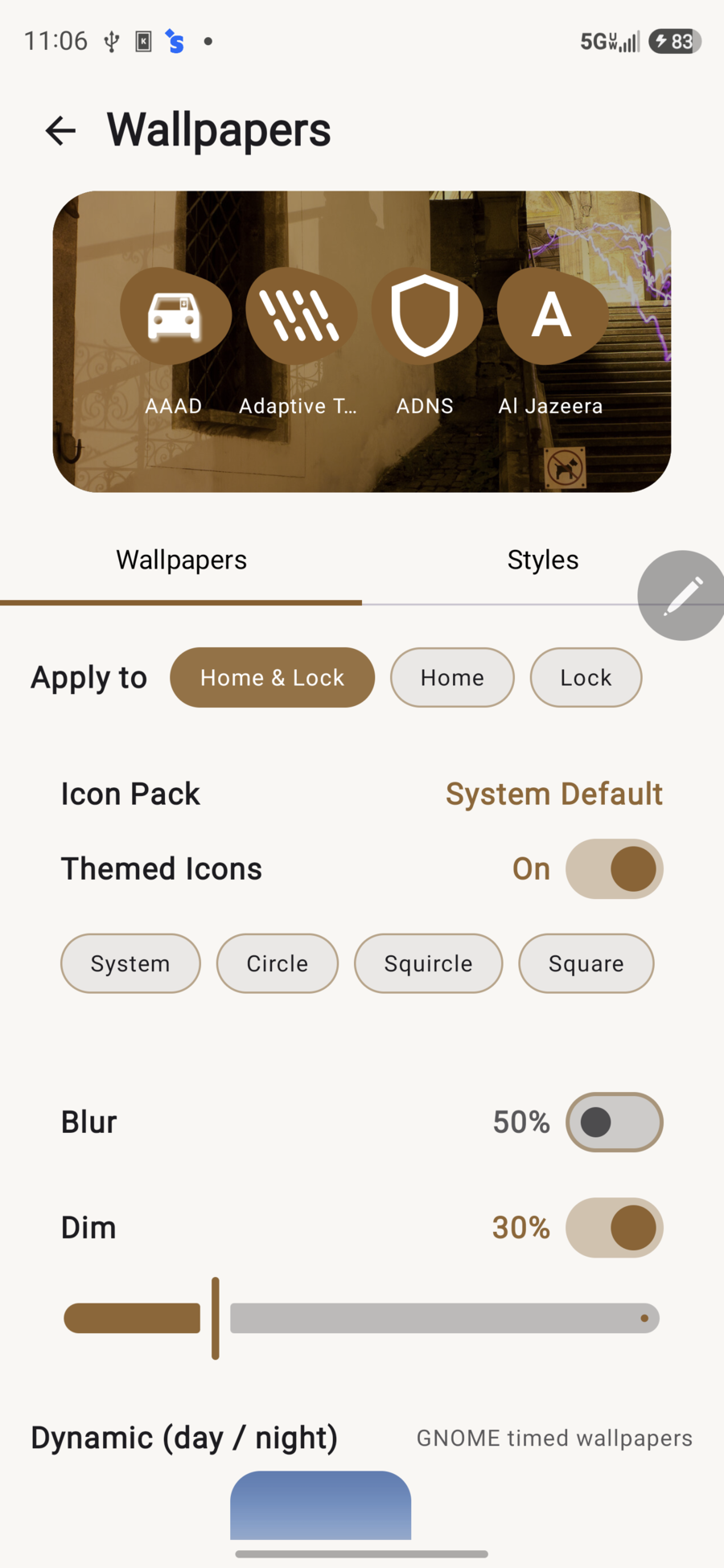
- Apply to Home & Lock, Home only, or Lock only
- Icon pack and themed icons (recolor to theme accent)
- Shapes: System, Circle, Squircle, Square
- Blur and Dim so icons stay readable
- Optional adaptive dimming / OLED-friendly options to keep blacks deep and text readable
Dynamic & your photos
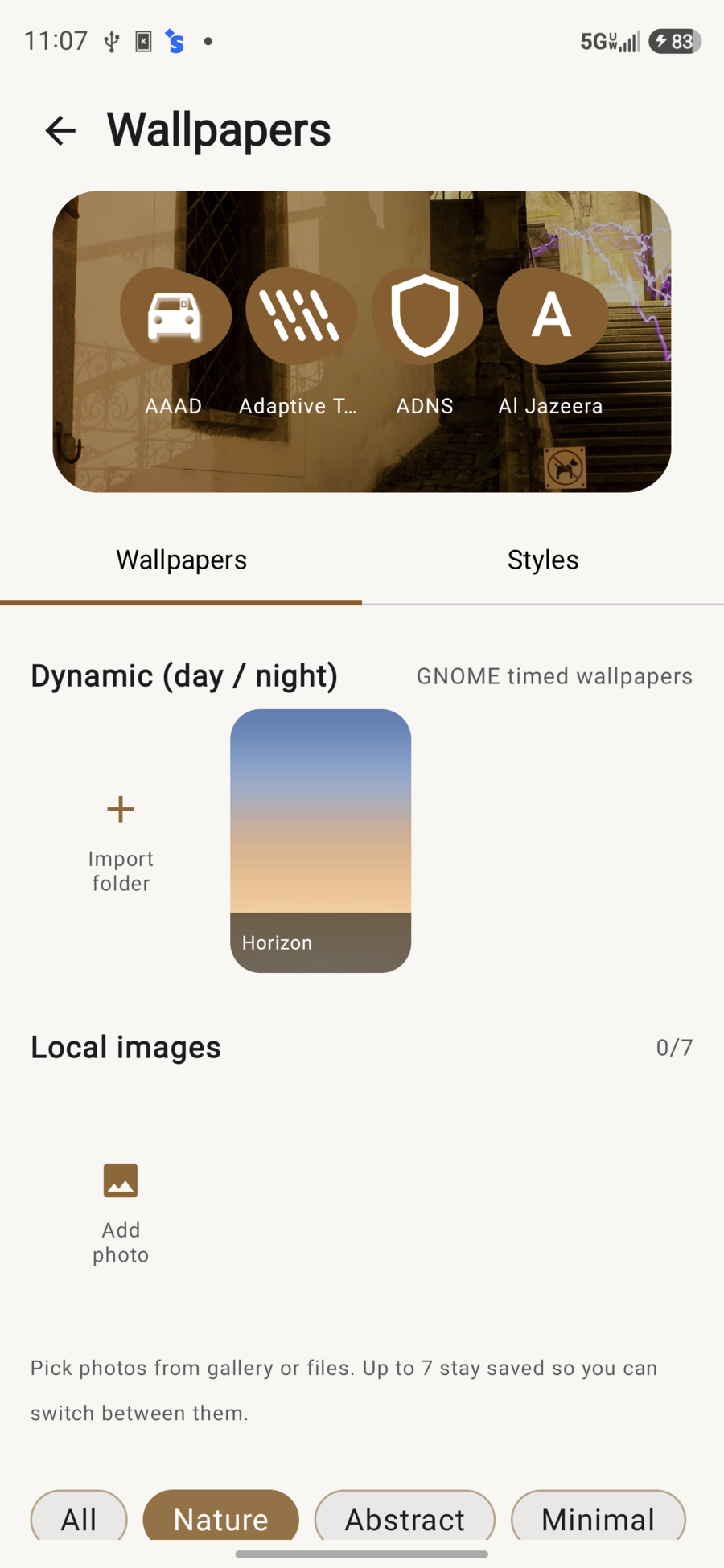
- Dynamic (day / night) — import GNOME timed packs, or use built-in Horizon
- Local images — add up to 7 photos from gallery/files; tap to apply, long-press to remove
Built-in catalog
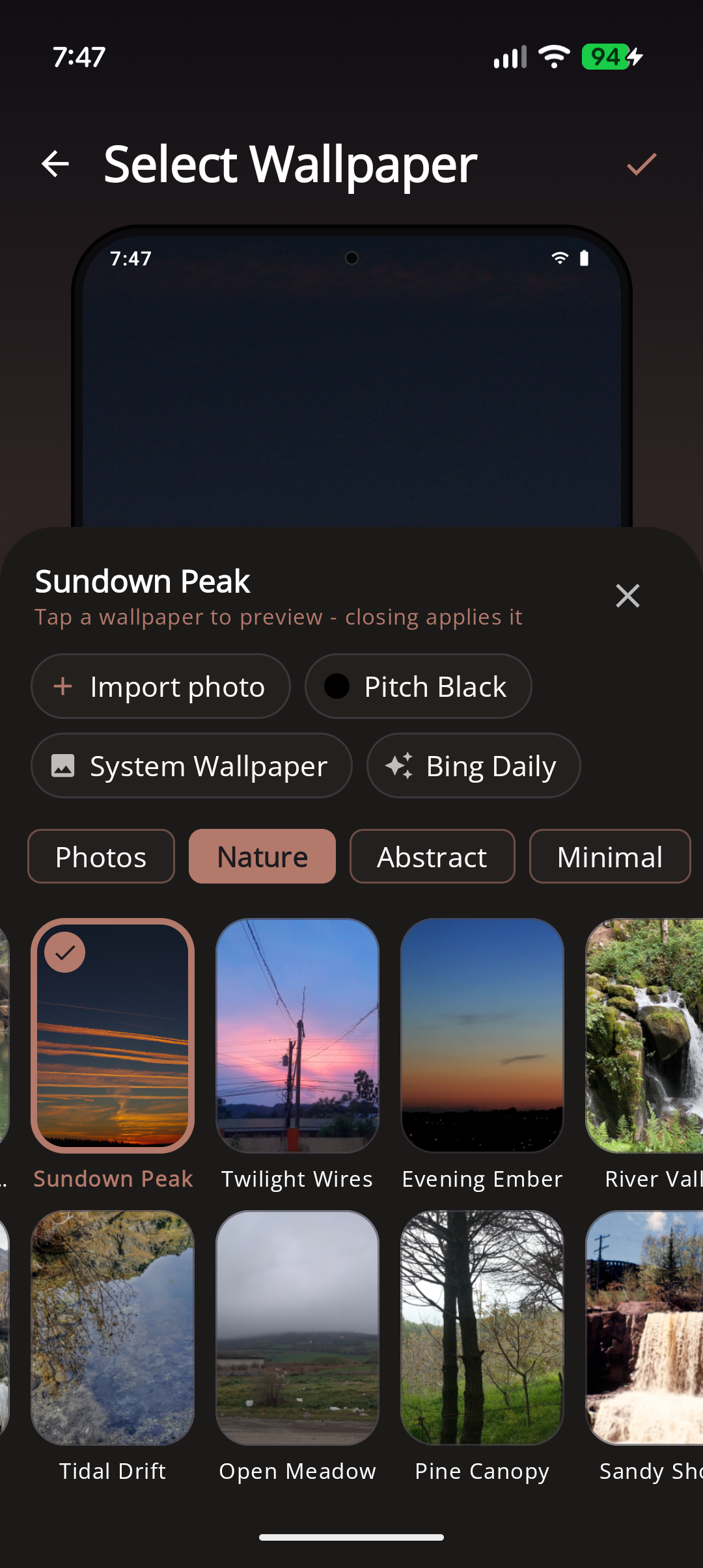
Categories such as Nature, Abstract, Minimal, Space, Dark, Urban, and more (drawn and photo sets). Heart items to mark favorites.
How to set a wallpaper
- Overview → Wallpaper, or Appearance → Custom.
- Pick system/black/Bing, a catalog image, a photo, or a dynamic pack.
- Adjust dim/blur and Apply to as needed.
- For a different look per page: turn Sync wallpaper off in overview, center that page, then set wallpaper.
Styles
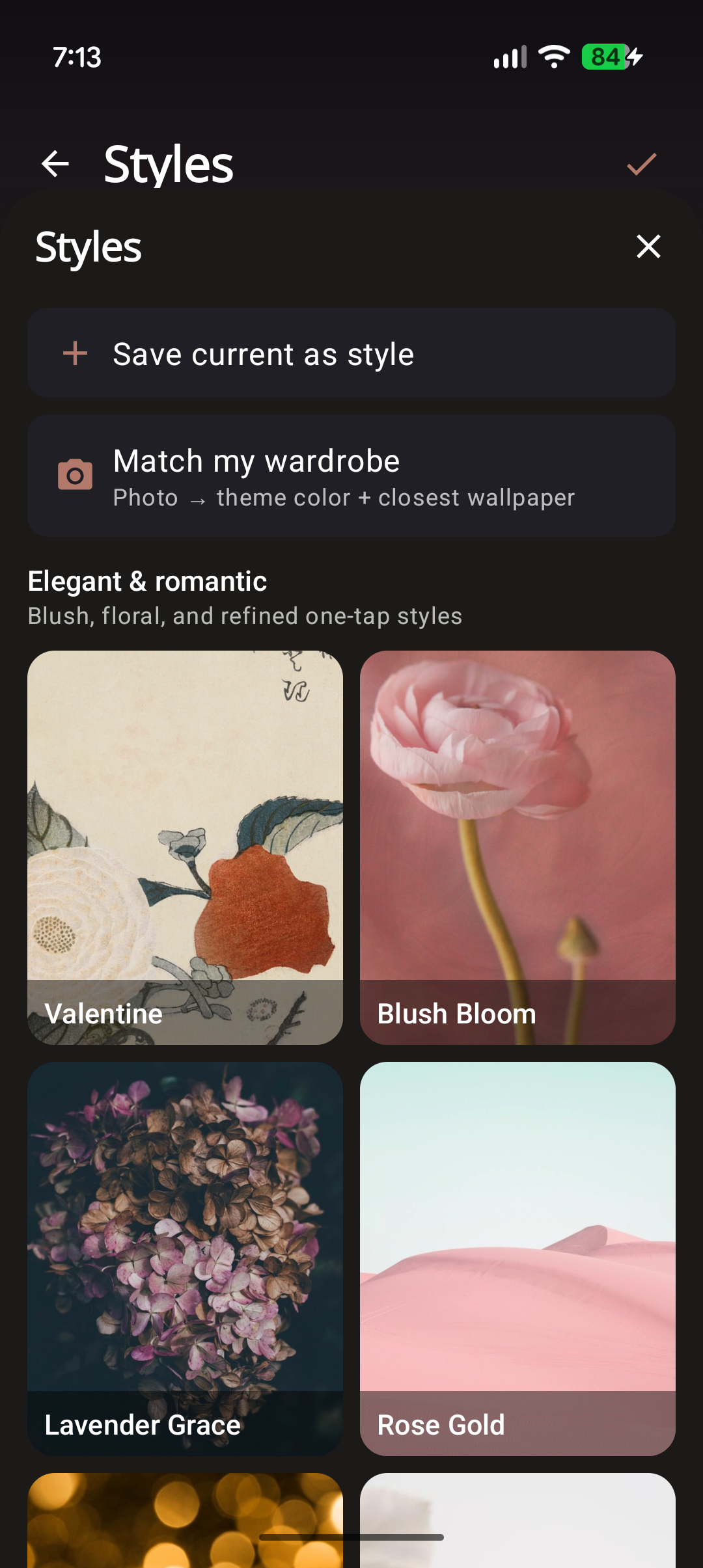
Styles apply a full look at once: wallpaper + colors + font + icon style, with a short reveal animation.
| Action | What it does |
|---|---|
| Save current as style | Store your current look for later |
| Match my wardrobe | Seed a style from a camera / photo shot |
| Built-in (Calm, Cyberpunk Noir, …) | Curated one-tap presets |
How to
- Open the wallpaper picker → Styles tab.
- Tap a built-in style, or save your own.
- Wait for the apply / reveal to finish (don’t spam Back mid-transition).
Icon packs & clock styles
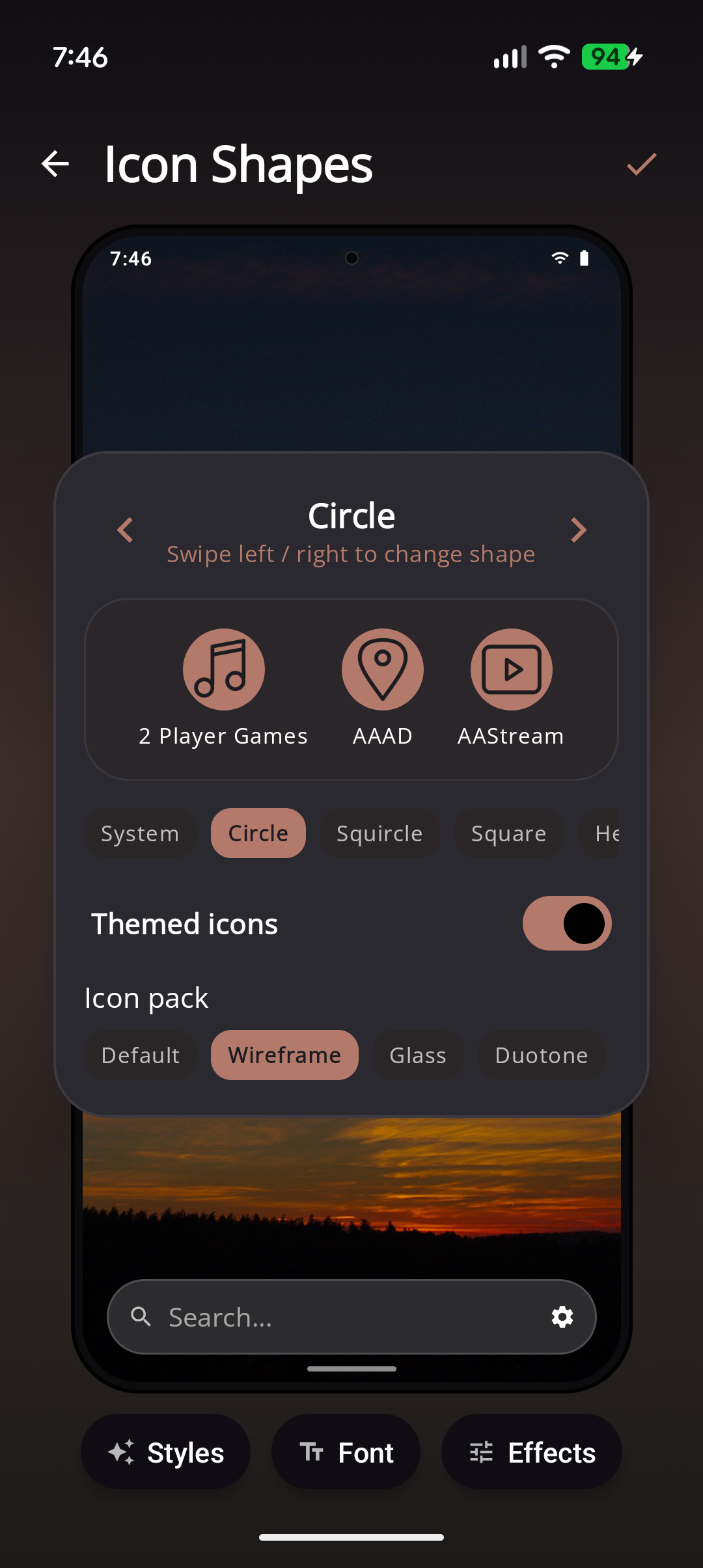
Built-in icon packs include looks such as:
- DuoTone
- Wireframe
- Frosted Glass
- Dot Matrix
- Neon Glow
- Silhouette
Pick a pack from wallpaper / Appearance icon options, then optionally enable themed icons.
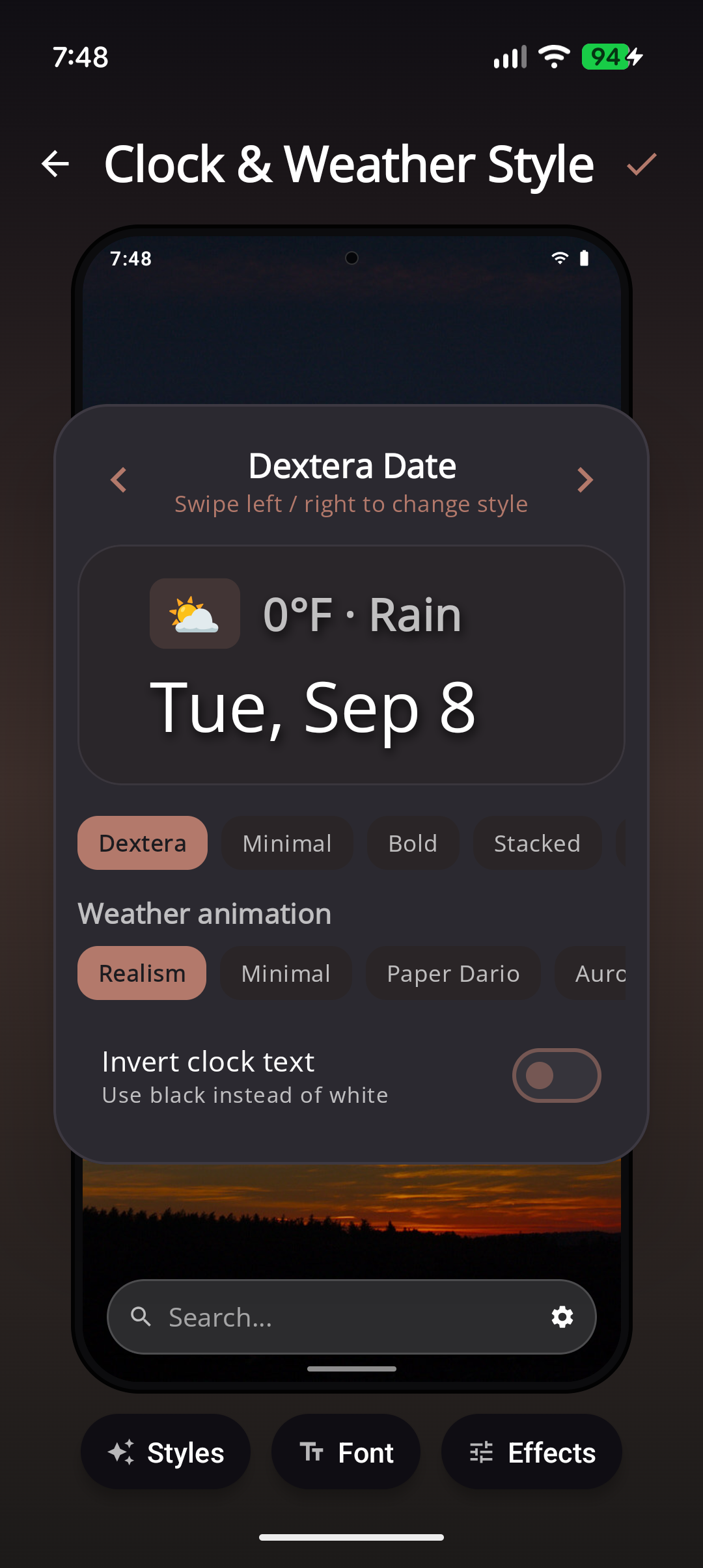
Clock styles under Settings → Home include Dextera, Minimal, Bold, Analog, and more (some Pro). Pair with weather overlay and optional network-speed next to the clock.
Settings overview
| Category | Covers |
|---|---|
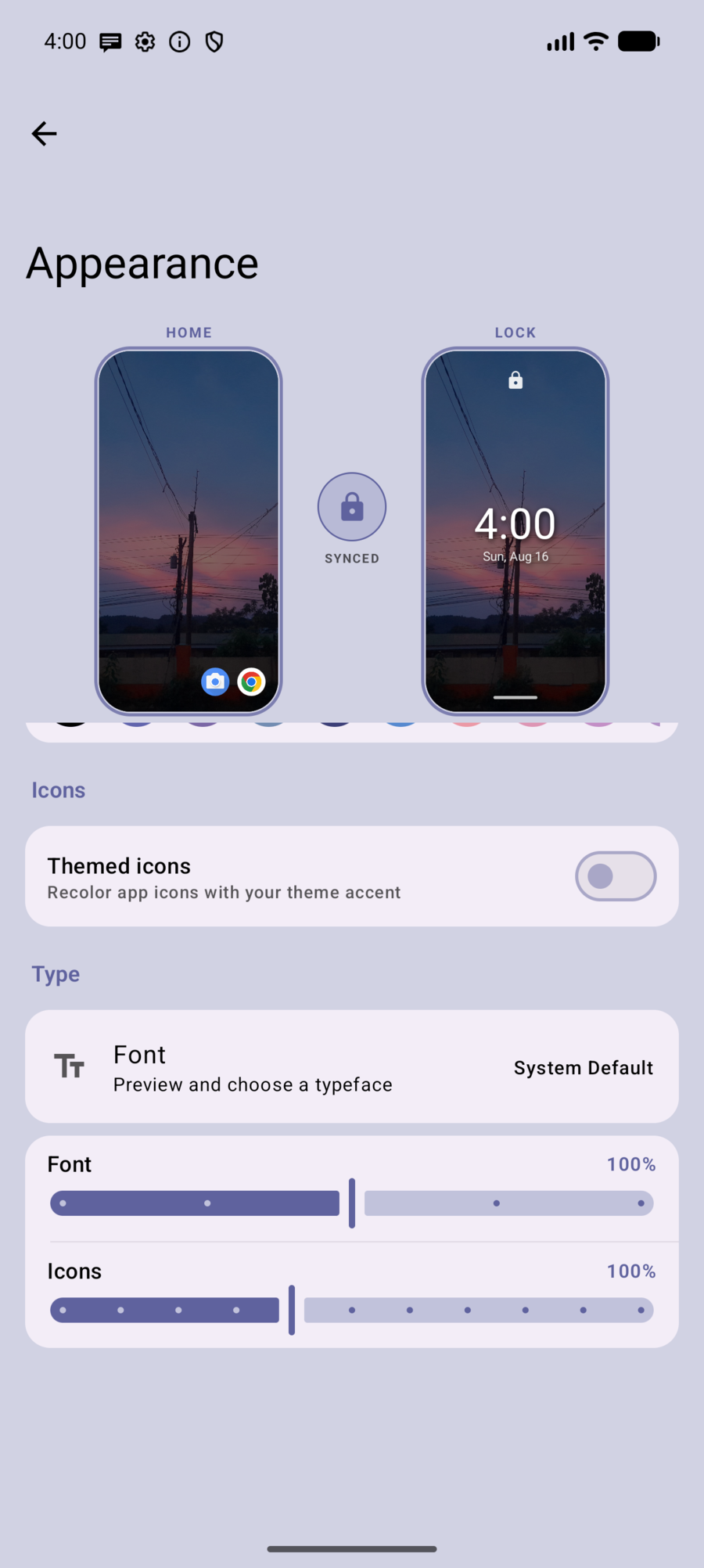
| Appearance | Wallpaper, theme, icons, fonts, live preview, frosted glass |
| Home | Clock styles, weather, status bar, Tasks quote, overlays |
| App List | Sidebar, folders, organization |
| Touch & Gestures | Left-handed rail, Home, double-tap, hold-back |
| Search | Engine, history, sources, file folders, OTP, calculator |
| Pages | Panels, order, transitions, traditional swipe |
| Digital Wellbeing | Zen / declutter, adaptive dimming |
| Security & Privacy | Uninstall protection, app lock / hide |
| Extensions | Optional add-ons (for example Walkie-Talkie) |
| Backup & Restore | Export / import (when shown) |
| About | Version, Pro, Save / Share / Import backup, legal, wiki |
| Help | Default home app / switch launcher |
The search-bar gear opens page overview. Full Settings are from overview → Settings, or from in-app Settings entry points.
More detail: Settings.
Appearance (detail)
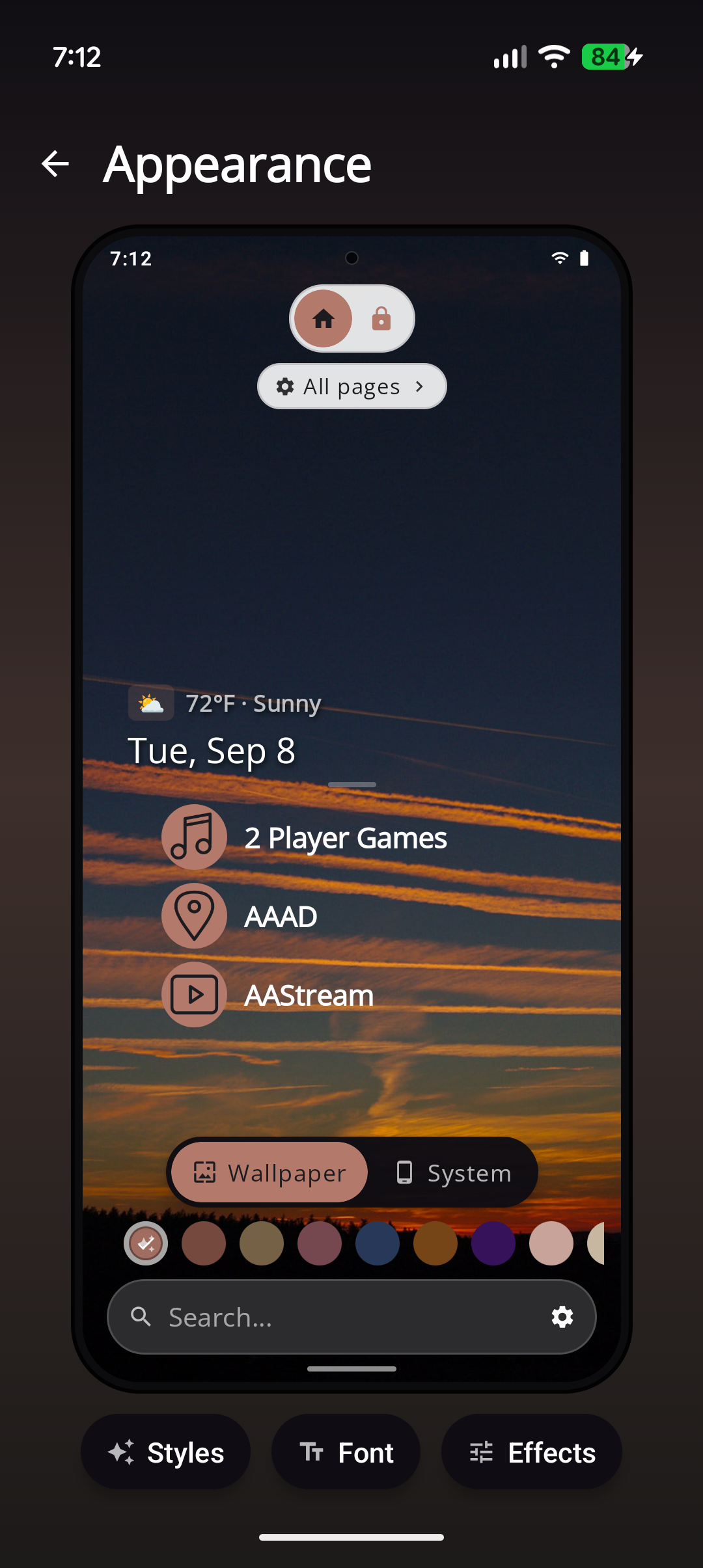
- Live preview of wallpaper + dim as you adjust
- Quick picks: Custom, Pitch Black, Bing Daily (Pro)
- Theme color swatches (including Auto from your wallpaper)
- Themed icons toggle and icon packs
- Optional frosted glass treatment for UI surfaces
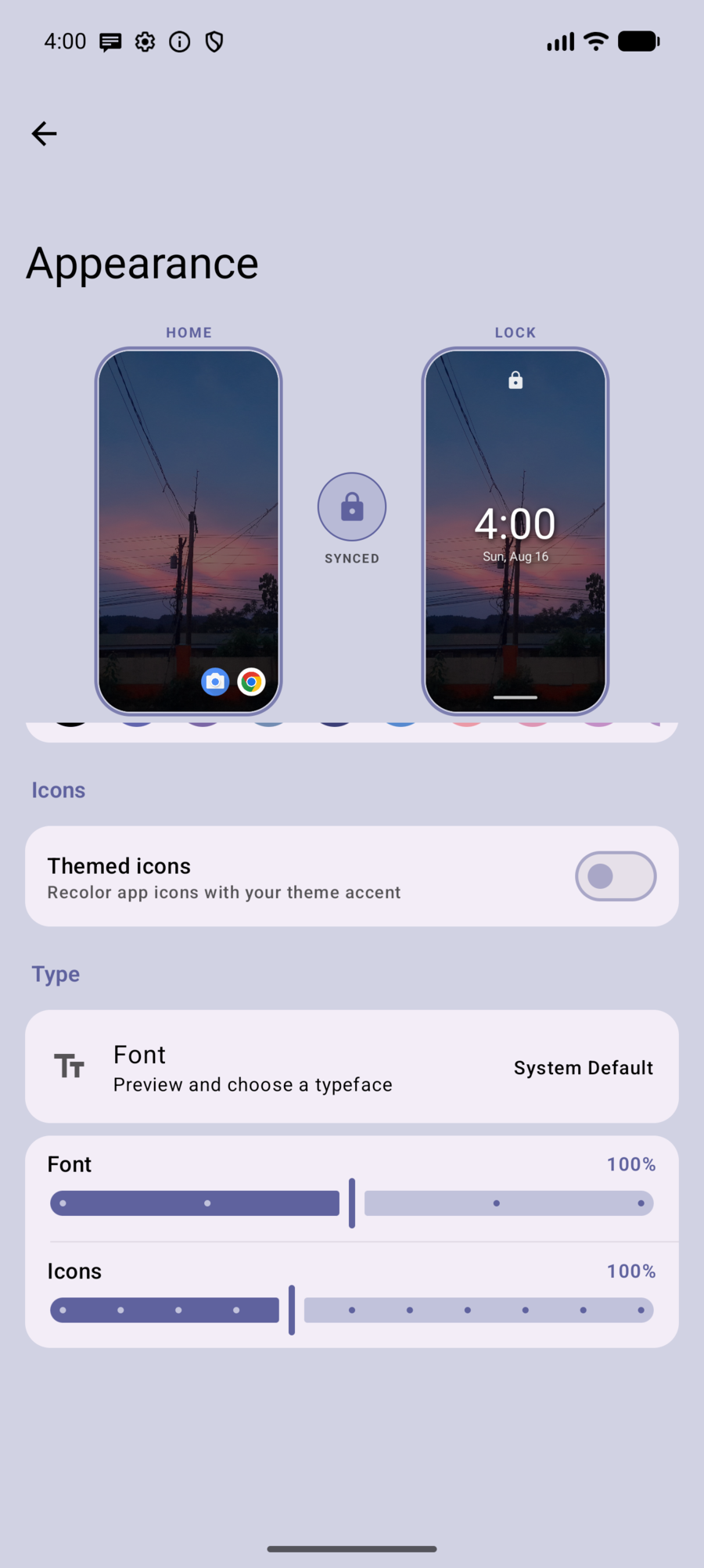
- Icon shapes
- Google Fonts picker (free fonts with live preview)
- Font scale and icon size sliders
Home settings
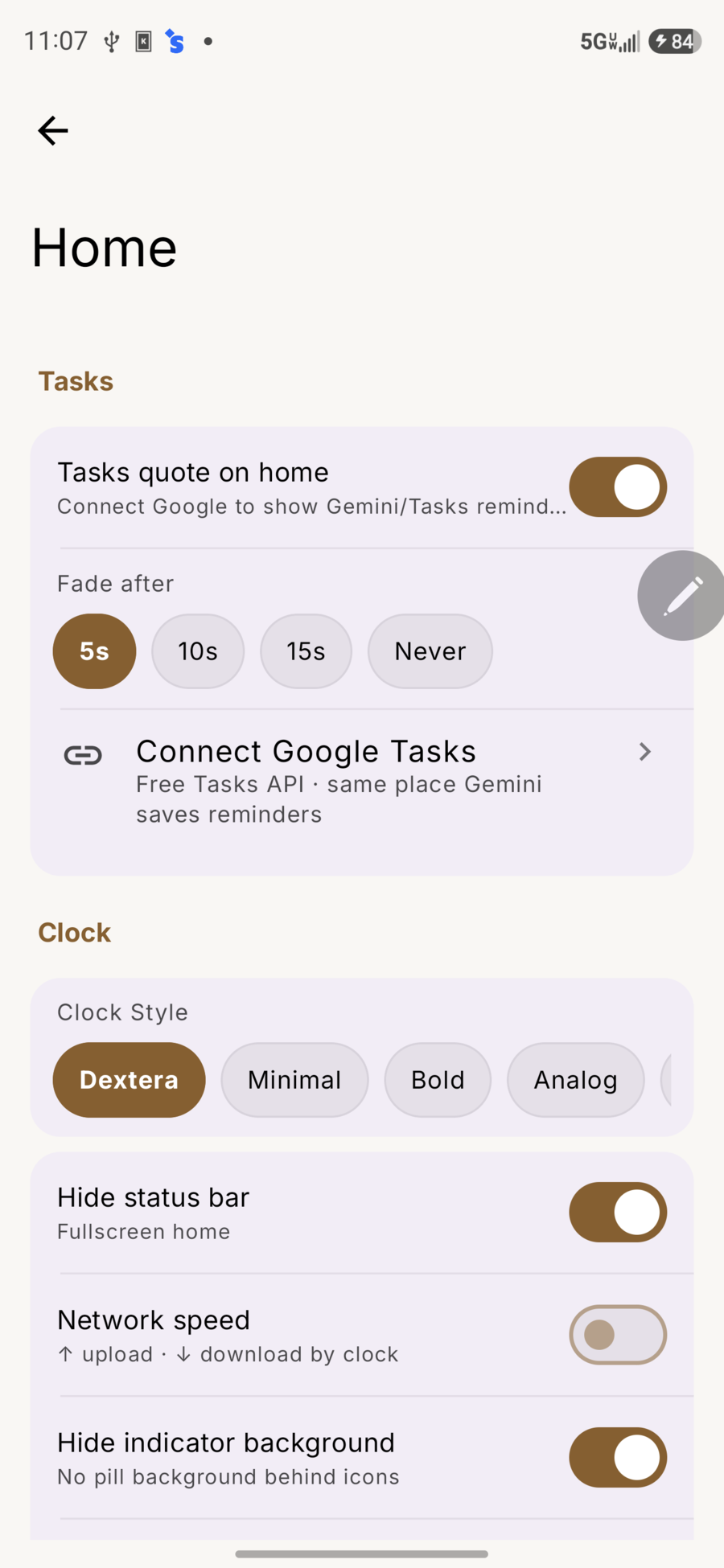
- Tasks quote on home — optional line from Google Tasks / Gemini-related reminders
- Connect Google Tasks, fade after 5s / 10s / 15s / Never
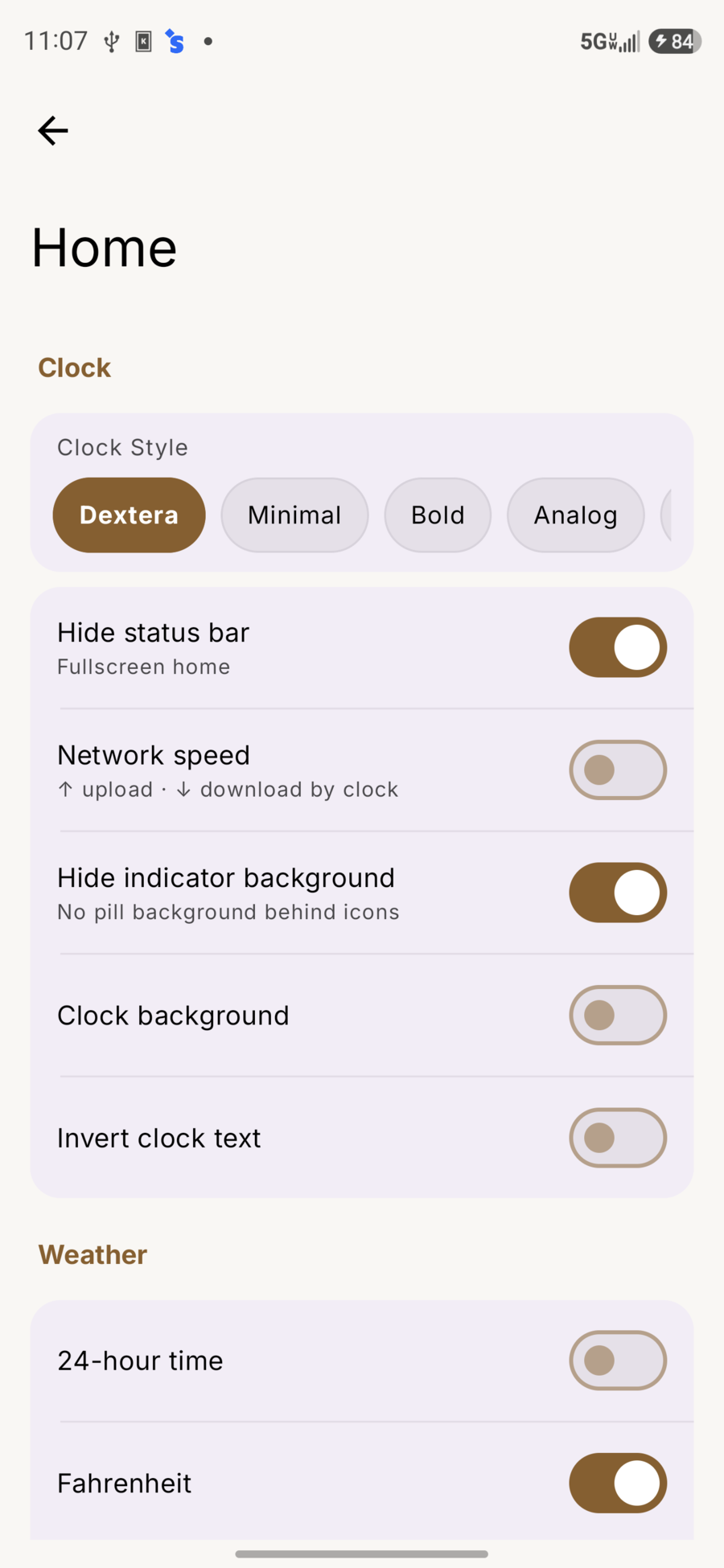
- Clock styles: Dextera, Minimal, Bold, Analog, and more (some Pro)
- Hide status bar (fullscreen home)
- Network speed next to the clock
- Clock background / invert text
- 24-hour time, Fahrenheit
- Weather overlay + Pro vignettes where available
Touch & Gestures
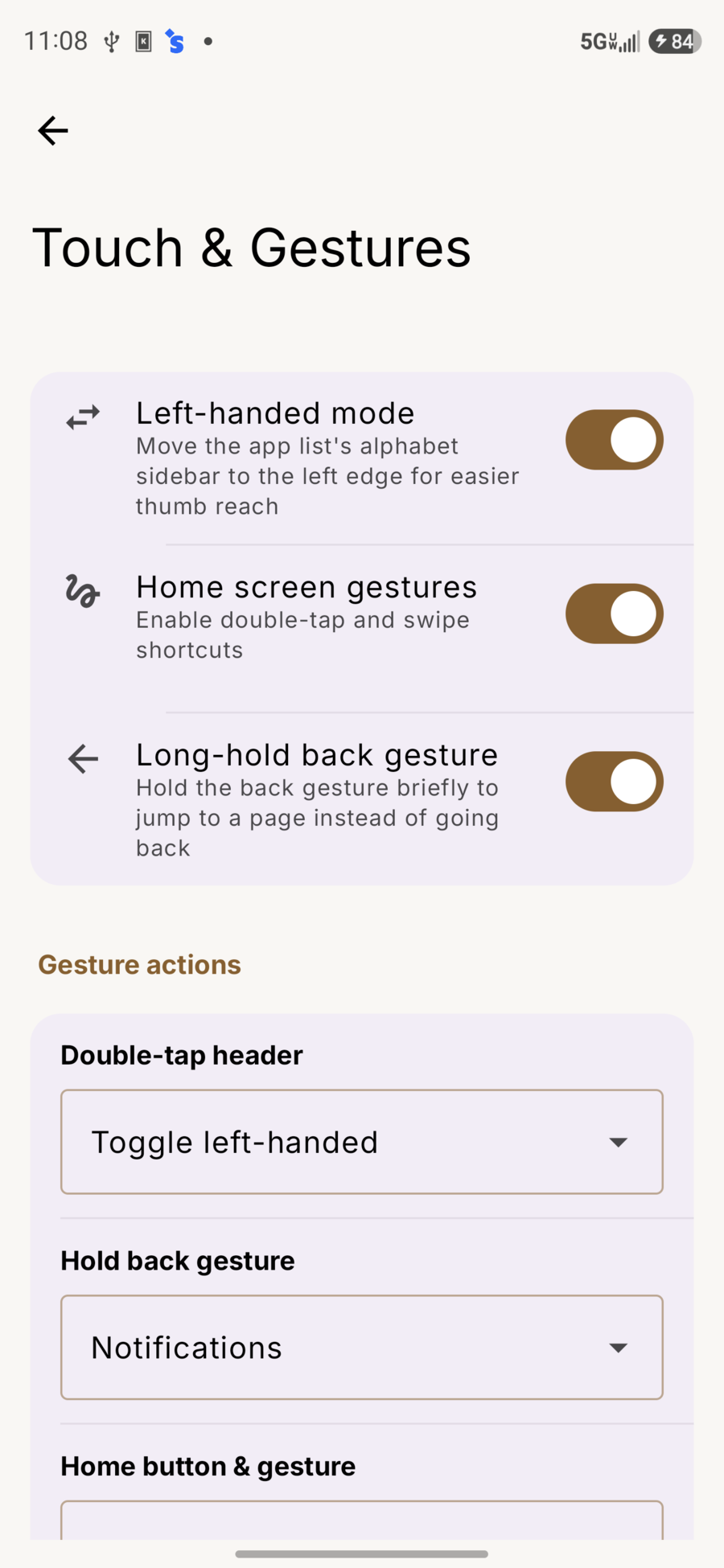
| Setting | Meaning |
|---|---|
| Left-handed mode | Letter rail on the left edge |
| Home screen gestures | Double-tap, swipe shortcuts |
| Long-hold back | Jump to a page instead of system back |
| Double-tap header | Action (e.g. toggle left-handed) |
| Hold back gesture | Target page (e.g. Notifications) |
| Home button & gesture | Default, First page, jump to page, … |
Full gesture list: Gestures.
Search
From the home bar
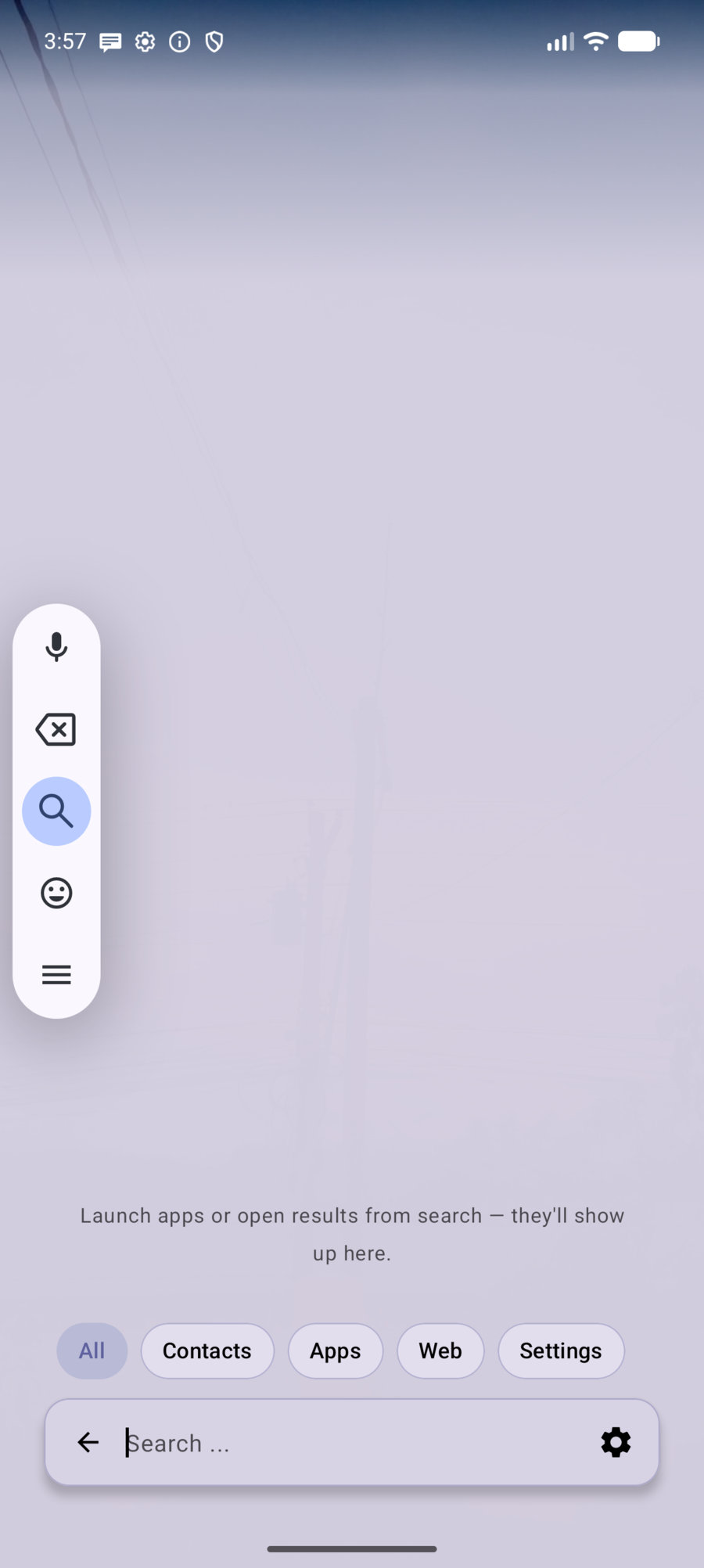
Tap Search… for apps, contacts, settings, files (in folders you add), calculator math, and web suggestions. Filter chips: All · Contacts · Apps · Web · Settings.
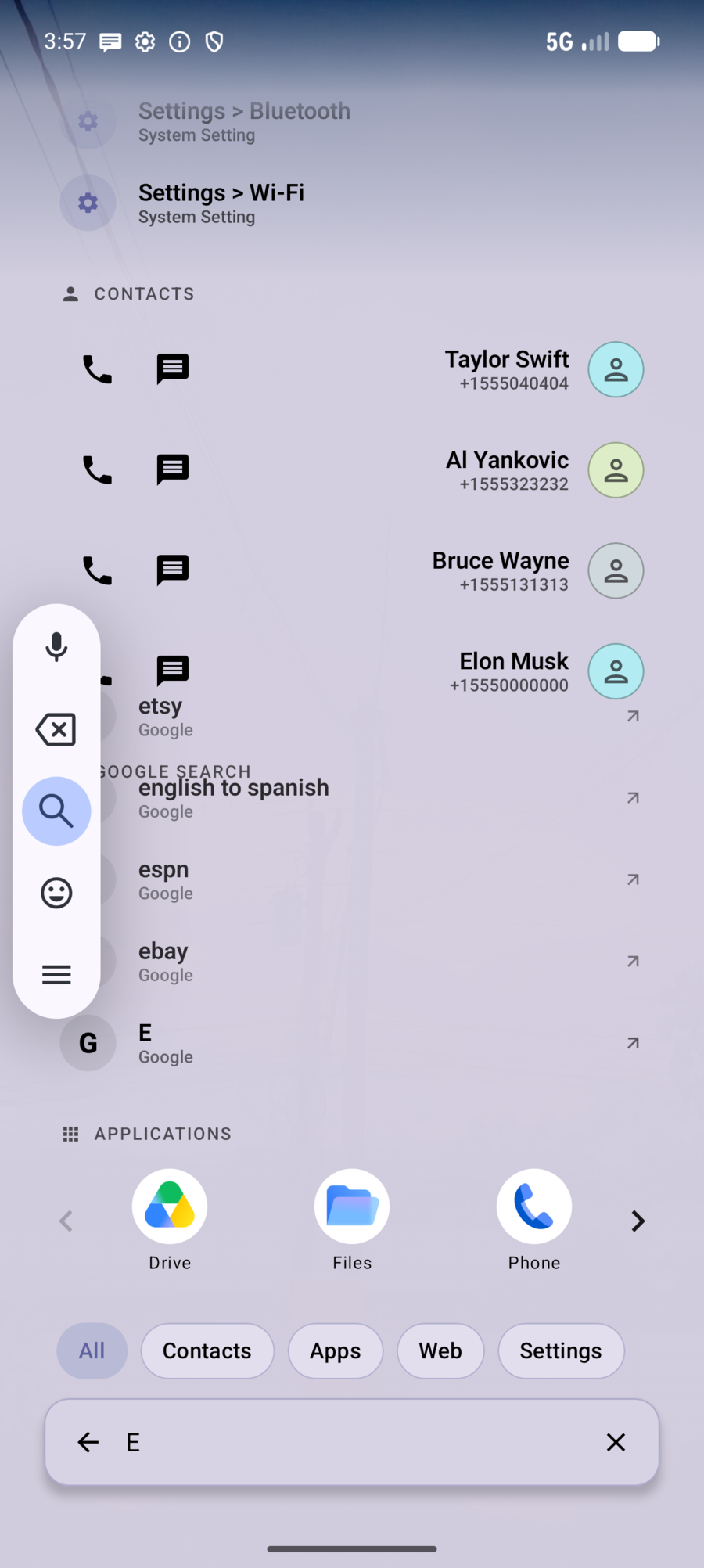
Search settings
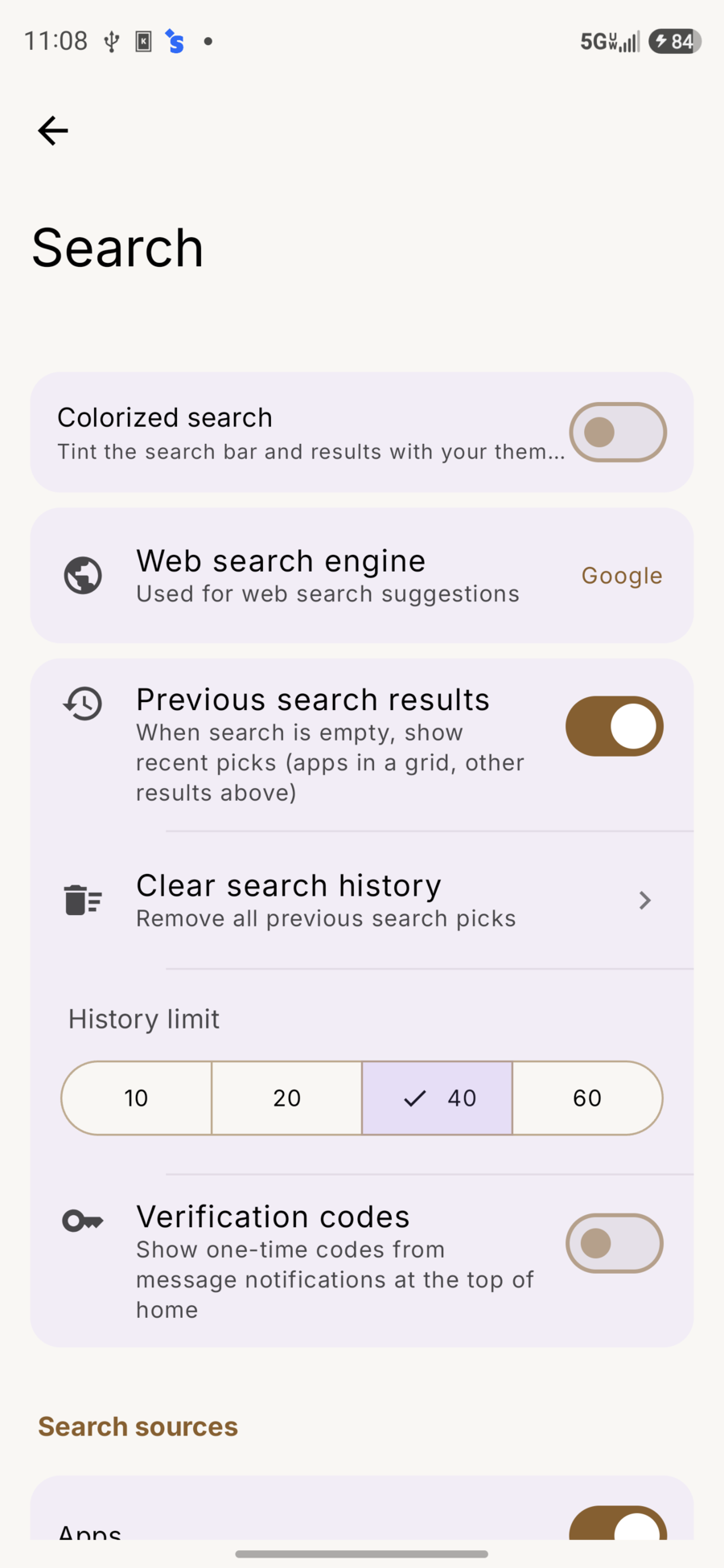
- Colorized search bar
- Web search engine
- Previous search results + history limit
- Verification codes — OTP from message notifications as a home chip (no SMS permission; Dextera does not read the SMS inbox)
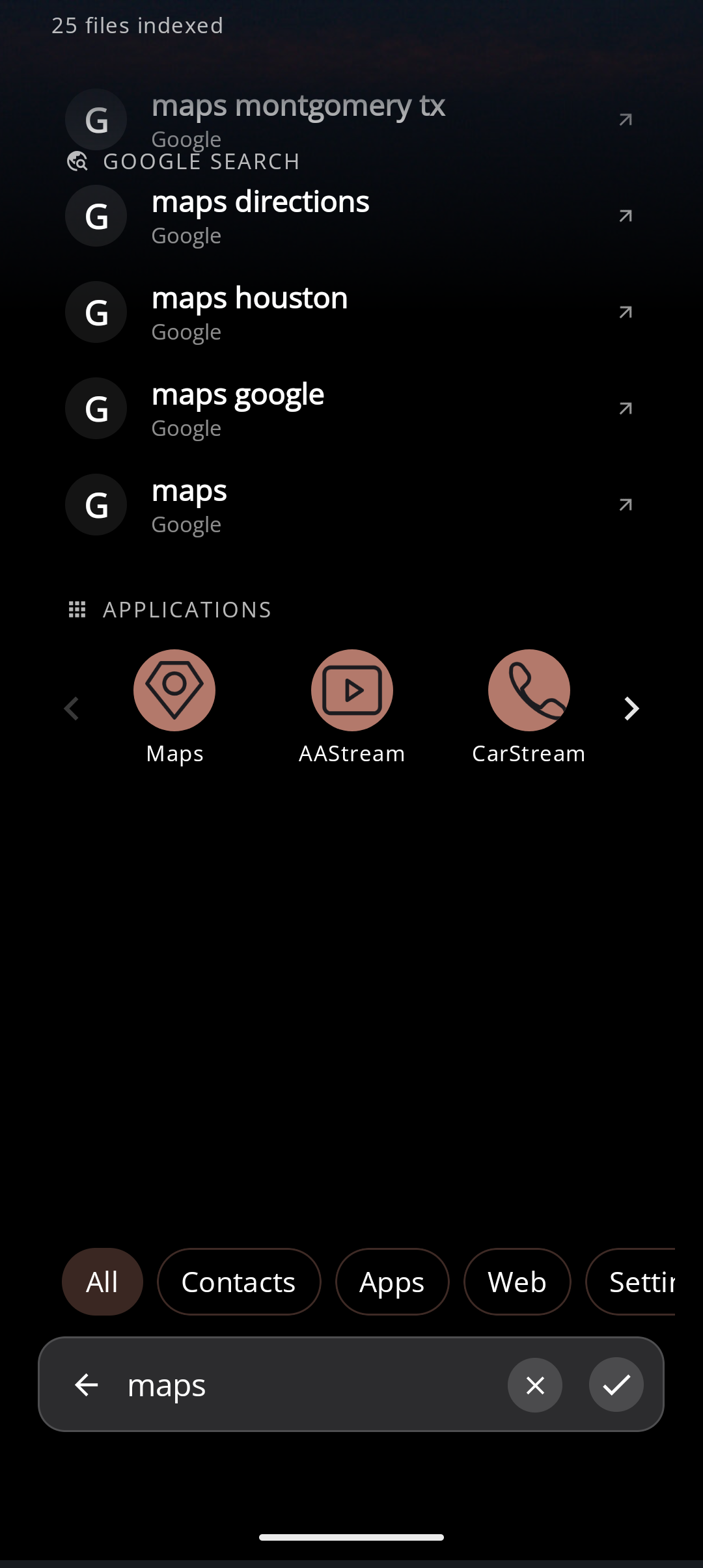
- Toggle sources: Apps, Contacts, Files, Web, Settings
- Type an expression (e.g.
12*8) for an inline calculator result when enabled - File search → Add folder — only folders you pick are indexed (Android may block phone root / Downloads)
Pages (layout & panels)
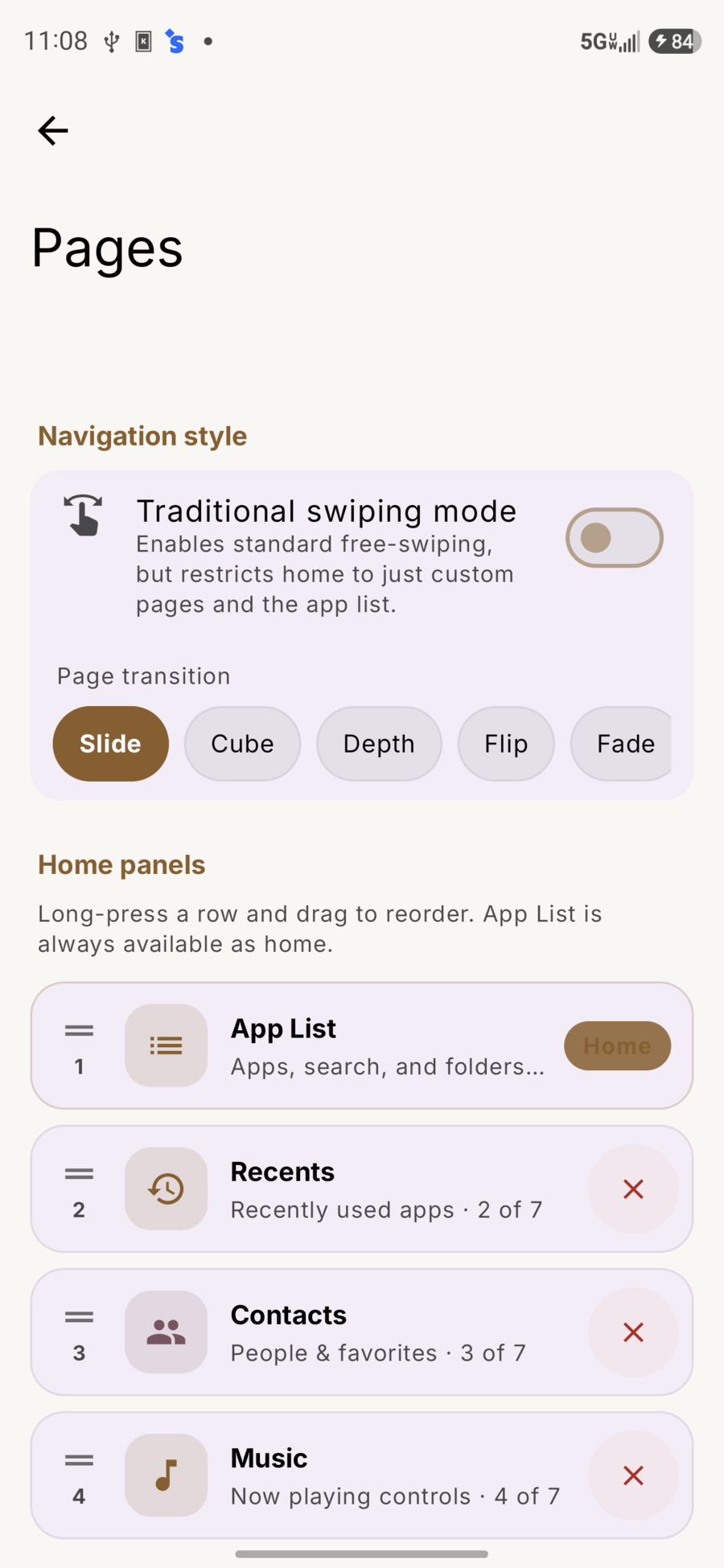
- Traditional swiping mode — free page swipes; home slims to App List + custom pages
- Page transition: Slide, Cube, Depth, Flip, Fade
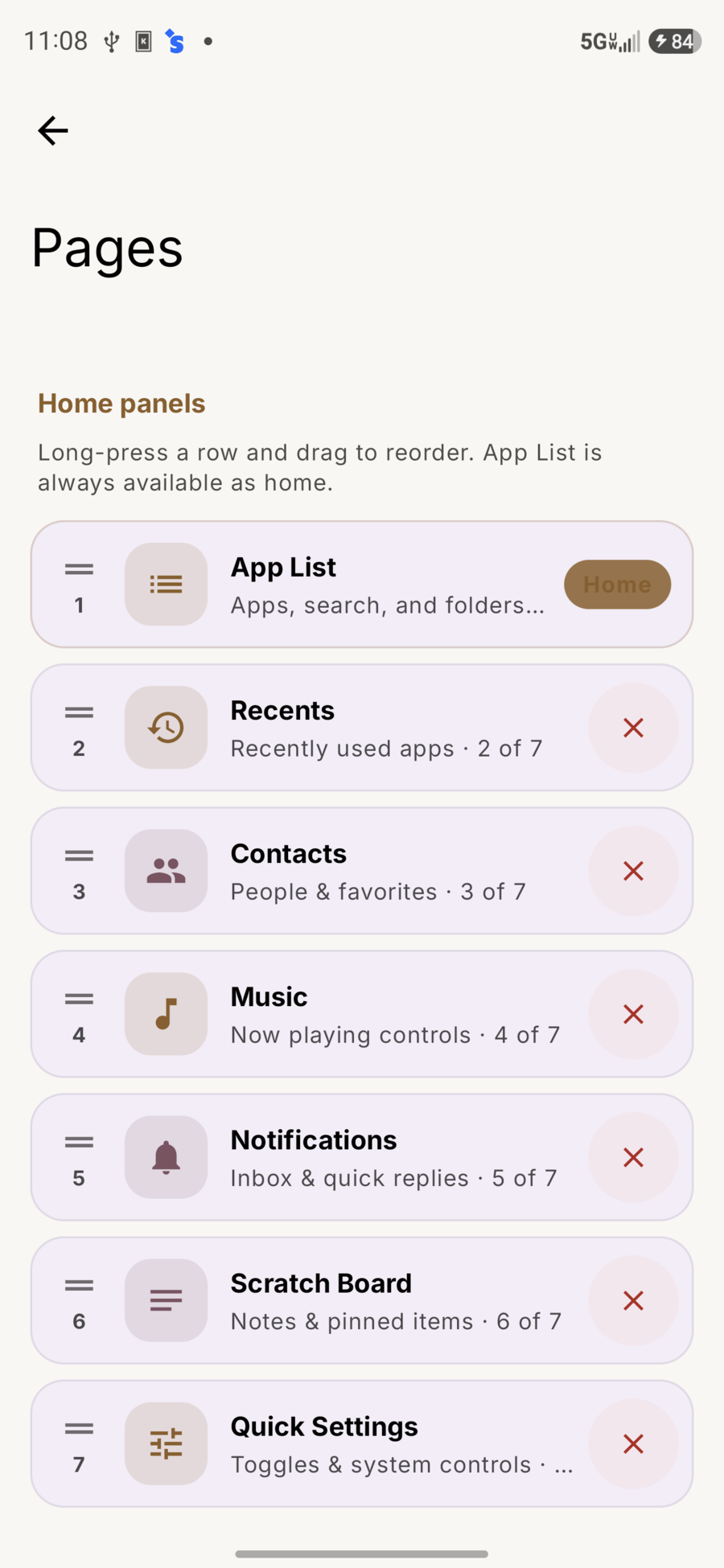
Built-in panels you can enable/reorder:
- App List (always home)
- Recents
- Contacts
- Music
- Notifications
- Scratch Board
- Quick Settings
Plus custom widget pages (extra pages may need Pro). Long-press a row and drag to reorder.
Widgets
| Kind | Behavior |
|---|---|
| Custom page | Free-form grid; drag/resize; Dextera widget picker with previews |
| Built-in page | Up to 3 stacked overlay widgets (e.g. on App List) via overview + Widget |
Foldable devices can use wider spreads in overview / pages when the hardware allows.
Digital Wellbeing
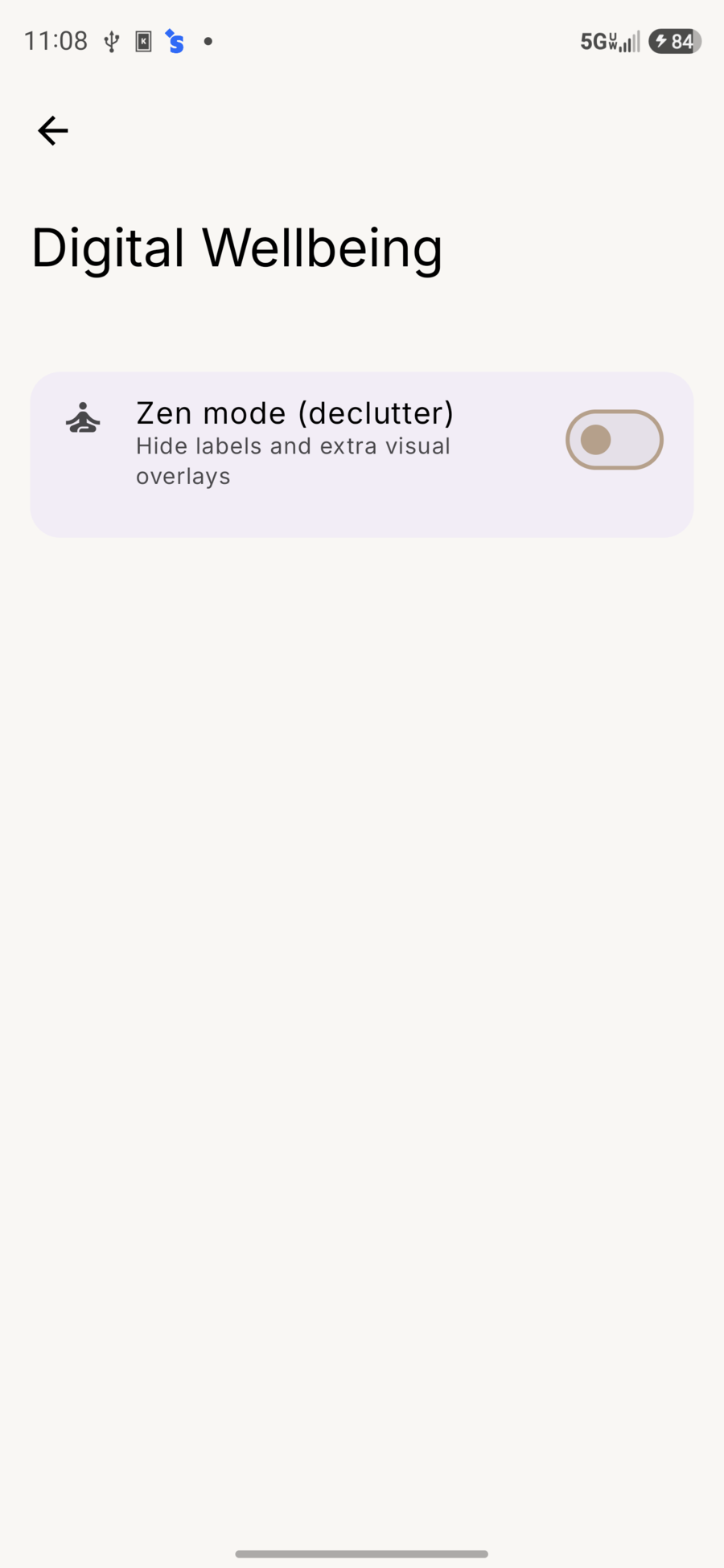
- Zen mode (declutter) — hide labels and extra visual overlays for a calmer home
- Related options: frequently used limits, hidden apps, notification filters (elsewhere in settings / Pro where noted)
- Adaptive dimming / OLED-friendly options to reduce eye strain and keep deep blacks
Security
| Feature | What it does |
|---|---|
| Uninstallation protection | Device admin so Dextera can’t be removed casually — turn admin off before uninstalling |
| App locking (Pro) | Long-press app → Lock; open from Dextera asks for biometrics. Does not use Accessibility or intercept apps only from system Recents |
| Hide apps | Keep selected apps off the visible list until you choose to show them again |
Also: optional OTP from notifications (Search settings) without reading SMS — no SMS permission.
Backup & restore
Save your Dextera layout as a zip, then restore it on this phone or another install.
Settings → About:
| Action | What it does |
|---|---|
| Save backup | System Save As picker — Downloads, Drive, SD card |
| Share backup | Share sheet (Files, email, Drive, …) |
| Import backup | Pick a zip, preview it, then restore and restart |
Play, Dev, and sideload builds write different file names so you can tell them apart:
dextera_play_backup_….zipdextera_dev_backup_….zipdextera_sideload_backup_….zip
What is in the zip
Pages, folders, wallpapers and style presets, app shortcuts, Scratch Board, search history and ranking, pinned and hidden apps, notification settings, and coach-mark “already seen” flags.
What is not
- Android permissions (Contacts, notifications, usage, default home, file folders) — you grant those again
- App lock PIN and locked apps
- Dextera Pro (comes back from Play, or the Dev unlock)
- Google Tasks login
- Live notification shade
- System widgets (device-bound IDs)
First-run restore
After Quick setup, Dextera offers Restore from backup or Start without a backup. A successful restore marks setup done and restarts into the restored home — without replaying the first-run tour.
Dextera Pro
One-time unlock on Google Play (Settings → About). Pro gates extras such as app lock, hide apps, Bing Daily, extra widget pages, and deeper search. Restore purchases if you reinstall. A backup does not copy Pro — Play does.
More help
- Getting started — install and first setup
- Gestures — flick, scrub, Home, reachability
- Pages — each page in more detail
- Settings — where every toggle lives
- Permissions · Privacy
- Contact — features@ for ideas, bugs@ if something is broken