
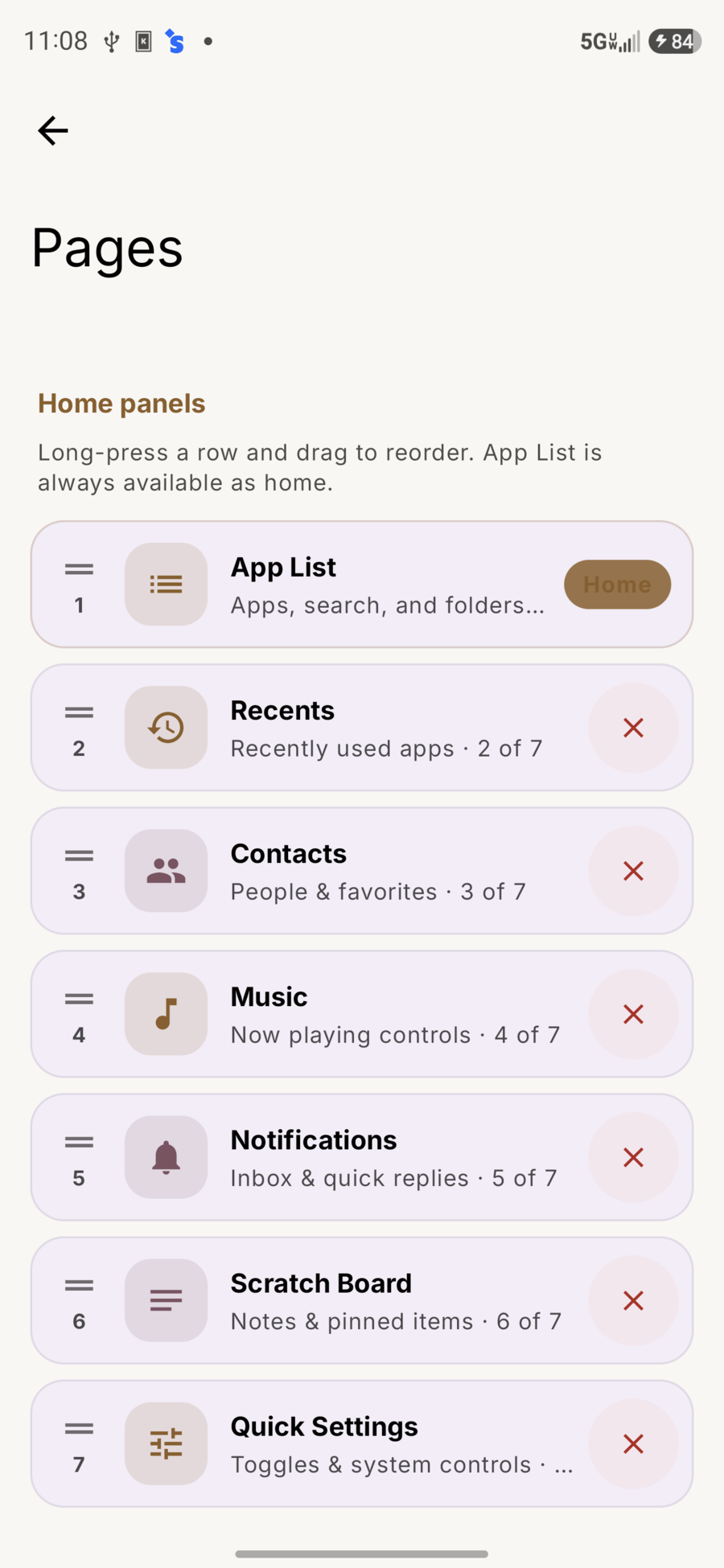
Turn pages on/off and reorder them under Settings → Pages, or long-press-drag cards in page overview.
Built-in pages
| Page | What it’s for | Screenshot |
|---|---|---|
| App List | All apps, letter rail, pins, frequently used | Home |
| Recents | Recently used apps | Recents |
| Contacts | Call, message, pin contacts; optional letter rail | Contacts |
| Music | Now playing, seek, volume | Music |
| Notifications | Full notification center, pin apps | Notifications |
| Scratch Board | Notes, clipboard, pins, attachments | Scratch Board |
| Quick Settings | Fast toggles on a dedicated page (may require Pro to add) | Quick Settings |
| Custom / Widgets | Free-form widget canvas (extra pages may need Pro) | — |
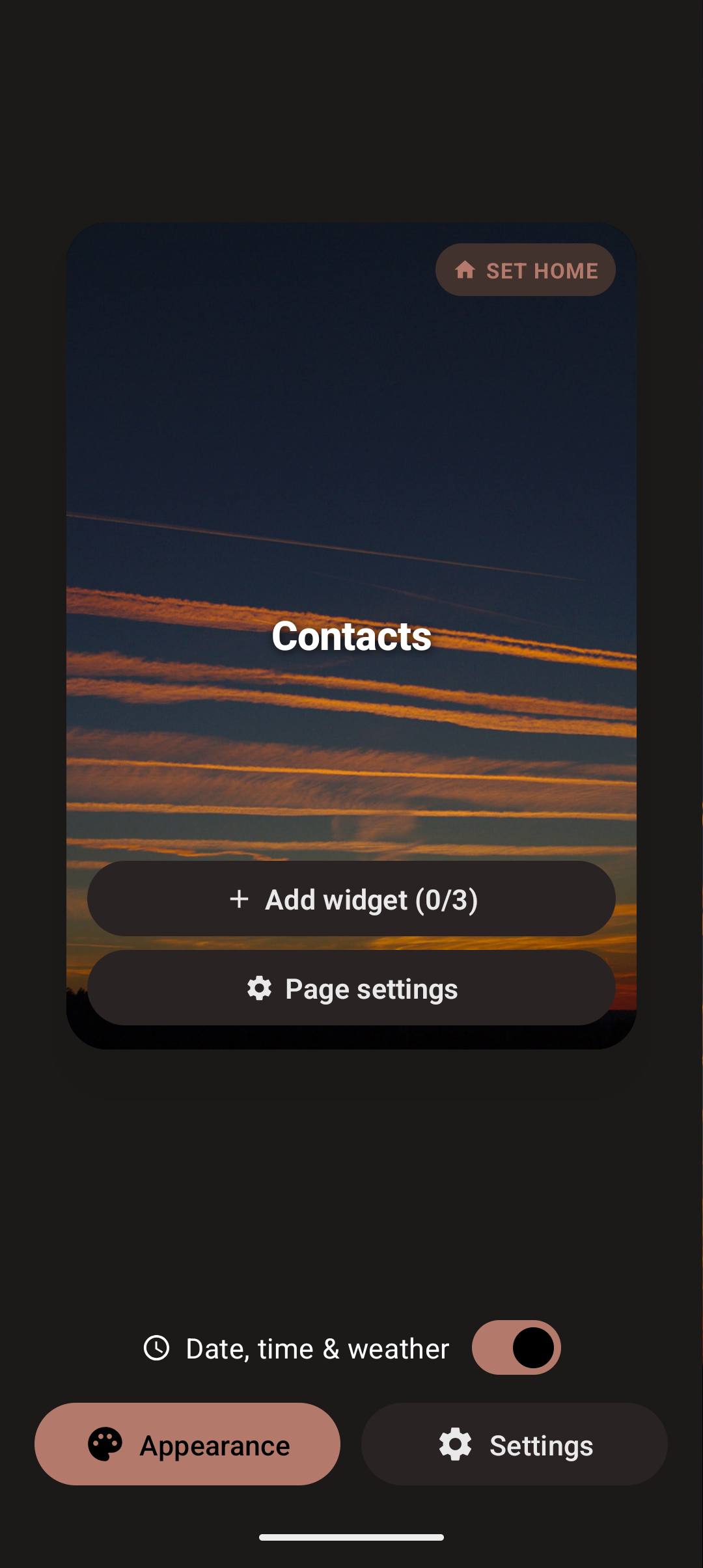
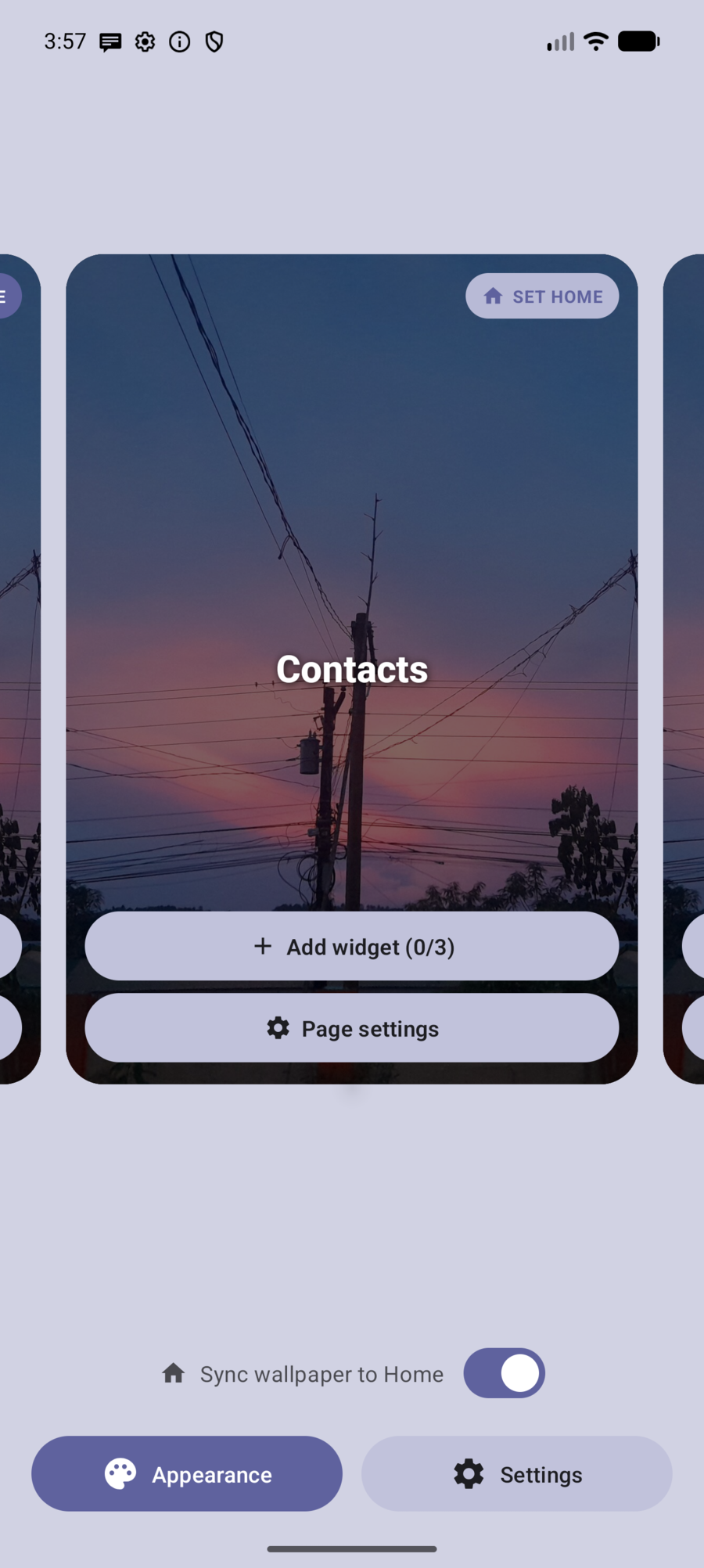
Page overview
How to open
- Gear on the search bar
- Pinch the home screen
- Long-press empty space
What you can do
- Reorder pages by long-press-dragging cards
- + Widget (n/3) — stack up to 3 overlay widgets on a built-in page
- + Add widgets — free-form layout on a custom page
- Settings on a card — that page’s options (Back returns to overview)
- Sync wallpaper across pages — one look everywhere, or per-page wallpapers
- Bottom Wallpaper / Settings
- On foldables, overview can show wider spreads when the display allows
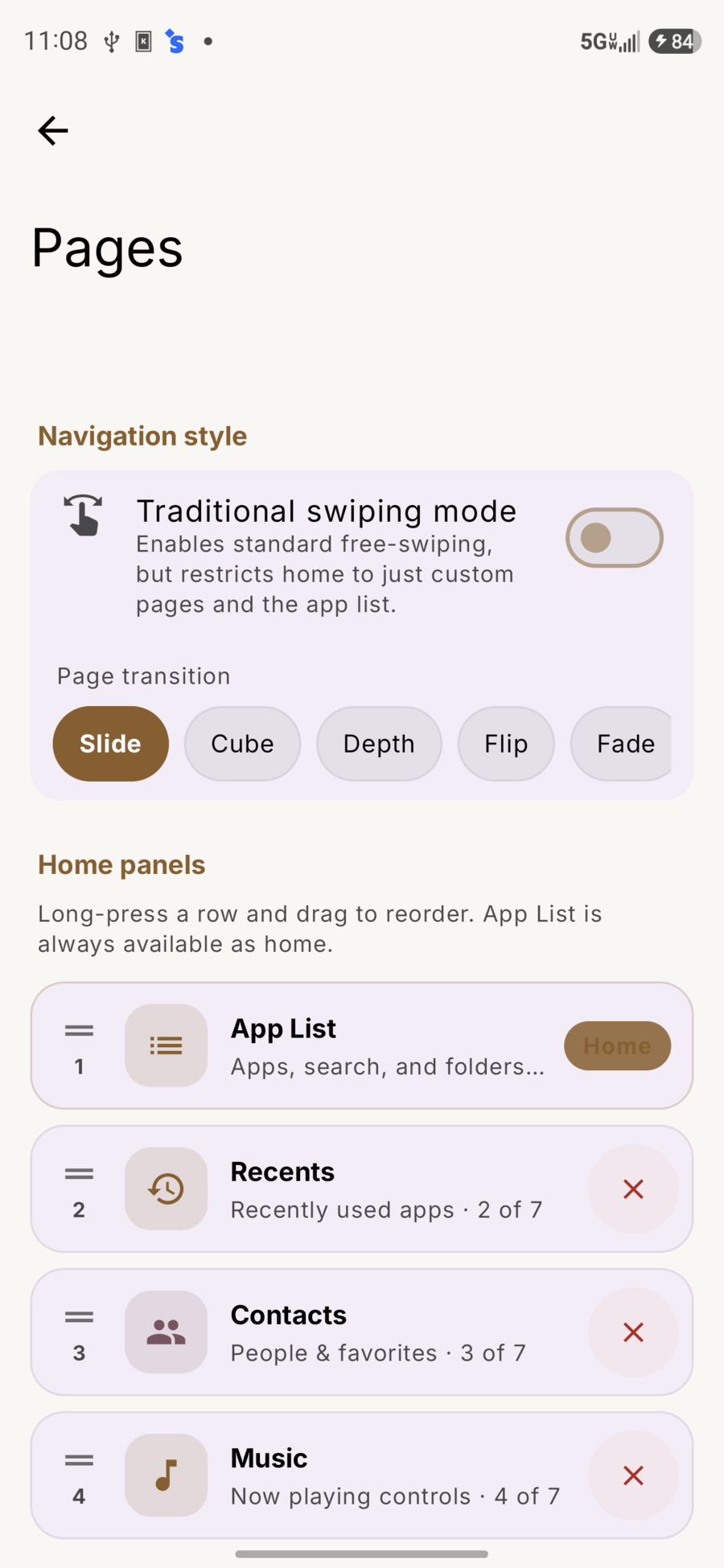
Navigation style
| Mode | Behavior |
|---|---|
| Default | Flick / scrub the search bar; back can cycle pages |
| Traditional swiping | Free page swipes; home is mostly App List + custom pages |
Page transitions: Slide, Cube, Depth, Flip, Fade (Settings → Pages).
Pages that hide when empty
Music and Notifications can disappear when there’s nothing to show, and return when content appears again.
App List
- A–Z apps, optional pinned and frequently used
- Letter rail (size, dots, fade, left-handed)
- Category chips when folders have apps
- Notification badges
Folders
Long-press app → Folder → pick a group (Social, Utilities, Media, …).
Quick Settings
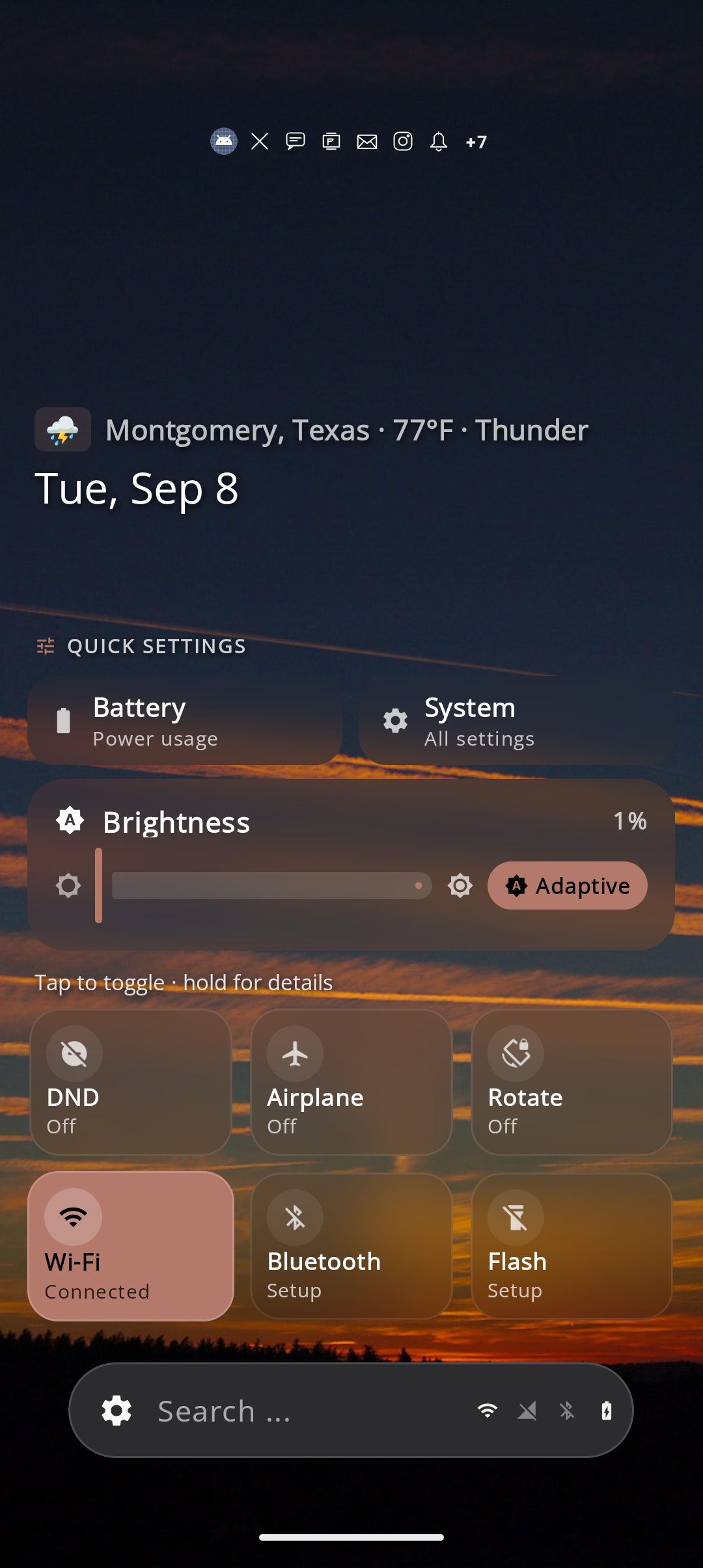
Enable under Settings → Pages, then flick to the page for fast toggles without opening the full system shade. Long-press a tile when Android exposes a deeper settings jump.
Scratch Board
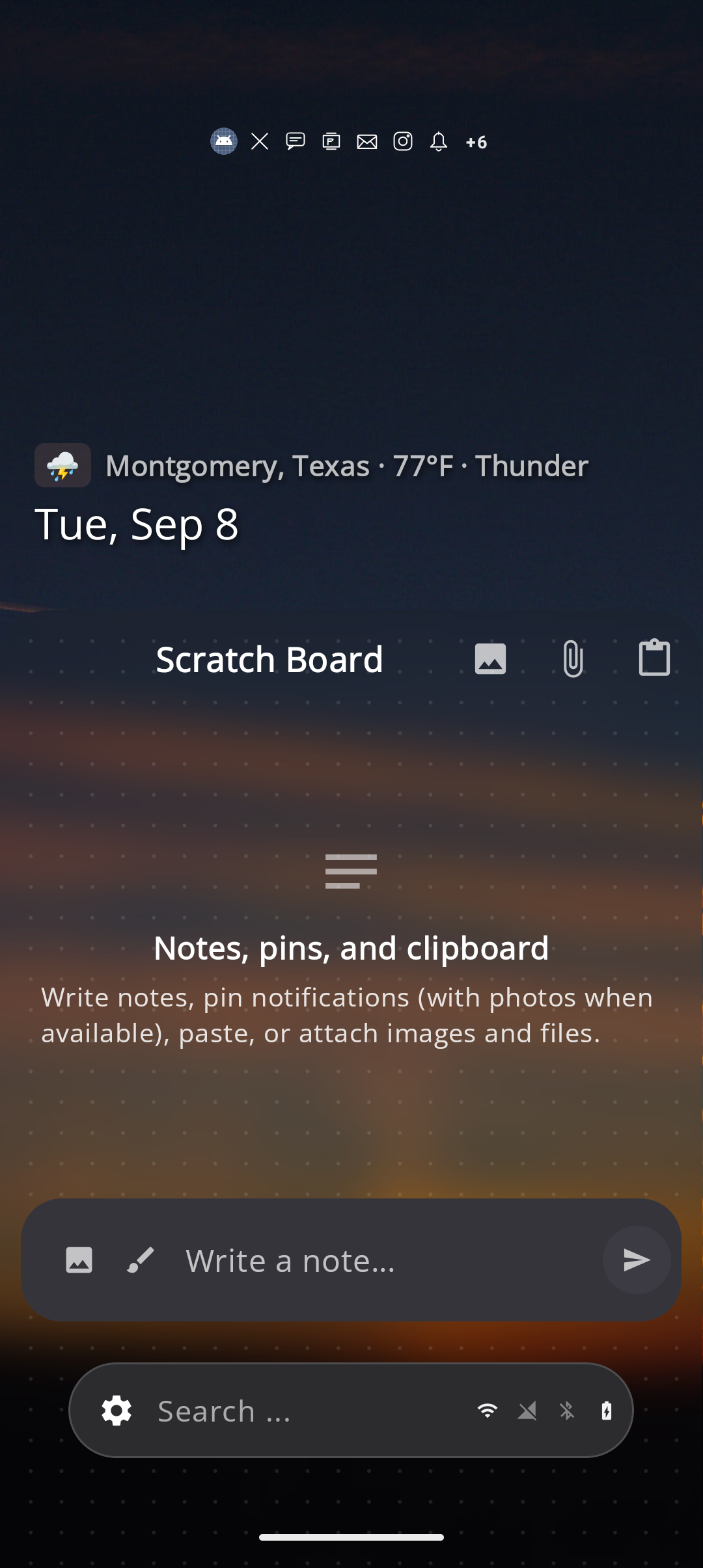
Notes, pinned notifications (with images when available), clipboard, and file attachments. Open as a page; compose with Write a note…
Widgets
On custom pages
- Free-form grid; drag and resize in edit mode
- Grid size presets from overview when a custom page is centered
- Dextera widget picker with previews
On built-in pages (overlay stack)
- Up to 3 Android widgets (or app shortcuts) as a stacked card fan on that page
- Add from overview + Widget
- Front card is interactive; peeks show which widget is underneath