
Install
Download Dextera Launcher from Google Play:

First launch
First-run is a few short steps — no long permissions gauntlet:
| Step | What happens |
|---|---|
| Welcome | Quick intro to Dextera |
| Quick setup | Optional checklist — default home, notifications, contacts, weather, file-search folders, usage insights |
| Restore from backup | Restore a Dextera zip, or Start without a backup |
| How Dextera works | Short tour of gestures |
Skip any permission you don’t need; you can turn it on later in Settings. A backup cannot grant Android permissions — those still need a tap.
After you finish setup, a one-time coach-mark tour walks the home screen. Restoring a backup also restores “already seen” flags so that tour does not play again.
File search tip
To search files from home, use Settings → Search → Add folder and pick places like Documents or Photos. Dextera only looks in folders you choose.
Make Dextera your home app
Android Settings → Default apps → Home app → Dextera
Until this is set, the Home button may return you to your old launcher.
What to turn on first
- Home app — so Home always opens Dextera
- Notification access — notification center, badges, music awareness
- Contacts (optional) — Contacts page and search
- Location (optional) — weather
- Folders (optional) — file search
The home screen at a glance
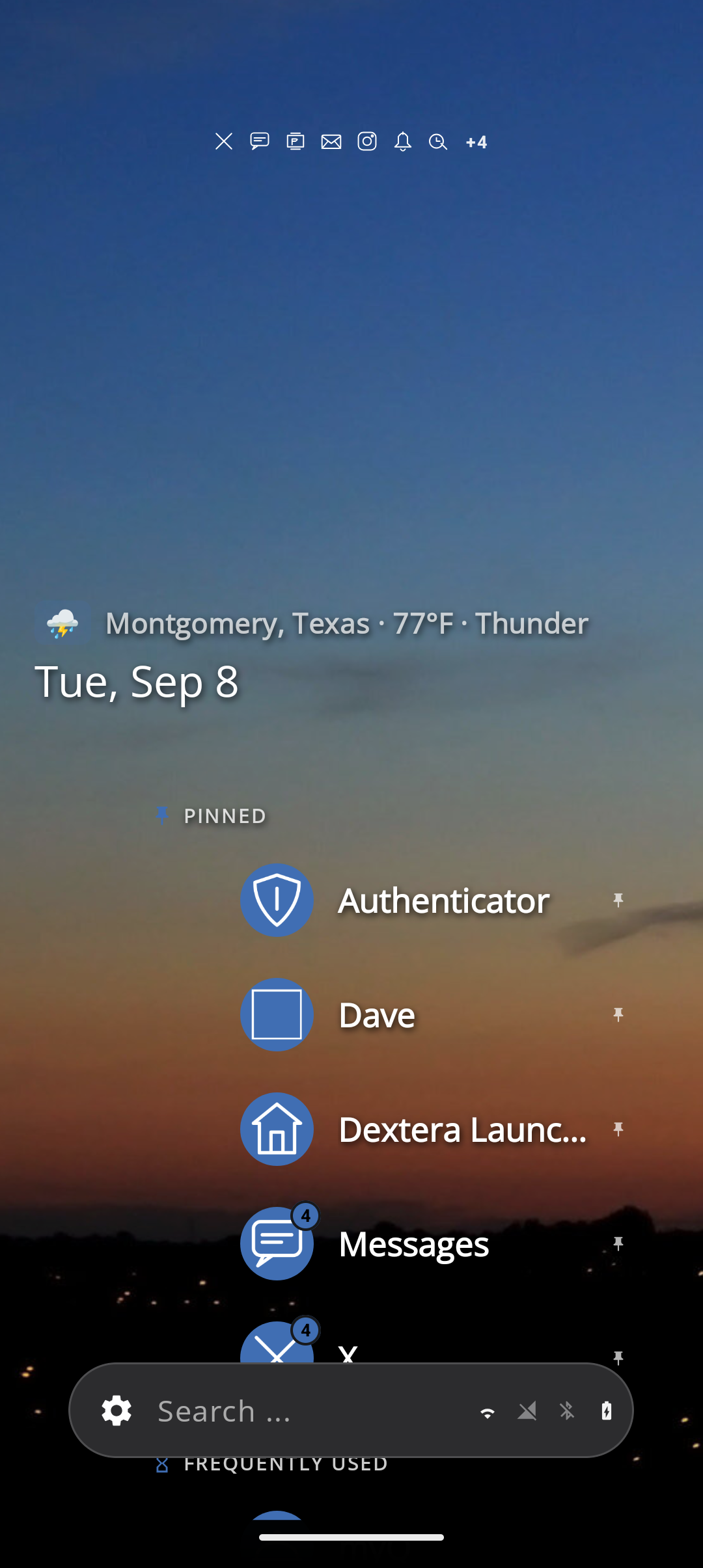
| Area | What’s there |
|---|---|
| Top | Optional status icons when the system status bar is hidden |
| Upper mid | Clock, date, weather (and optional Tasks quote) |
| Center | Current page (apps, recents, music, notifications, Scratch Board, Quick Settings, widgets, …) |
| Side | Letter rail on the app list |
| Bottom | Search bar — gear opens page overview |
Try these first
- Flick the search bar left or right to change page.
- Back while already on home also cycles pages (when traditional swiping is off).
- Hold and drag the search bar to scrub through all pages.
- Long-press an app for pin, lock, hide, folder, or uninstall.
- Pinch, long-press empty space, or tap the gear for page overview.
- In overview, open Appearance / Wallpaper (try Styles) or Settings.
- Under Settings → About, use Save backup / Share backup / Import backup.
- Under Touch & Gestures, set Home button to First page if you want: leave an app → page you were on; Home again → first page.
Feature tour
See Features for screenshots and how-tos for every major area (Music, Notifications, Scratch Board, Quick Settings, Styles, Search, Security, and more).